
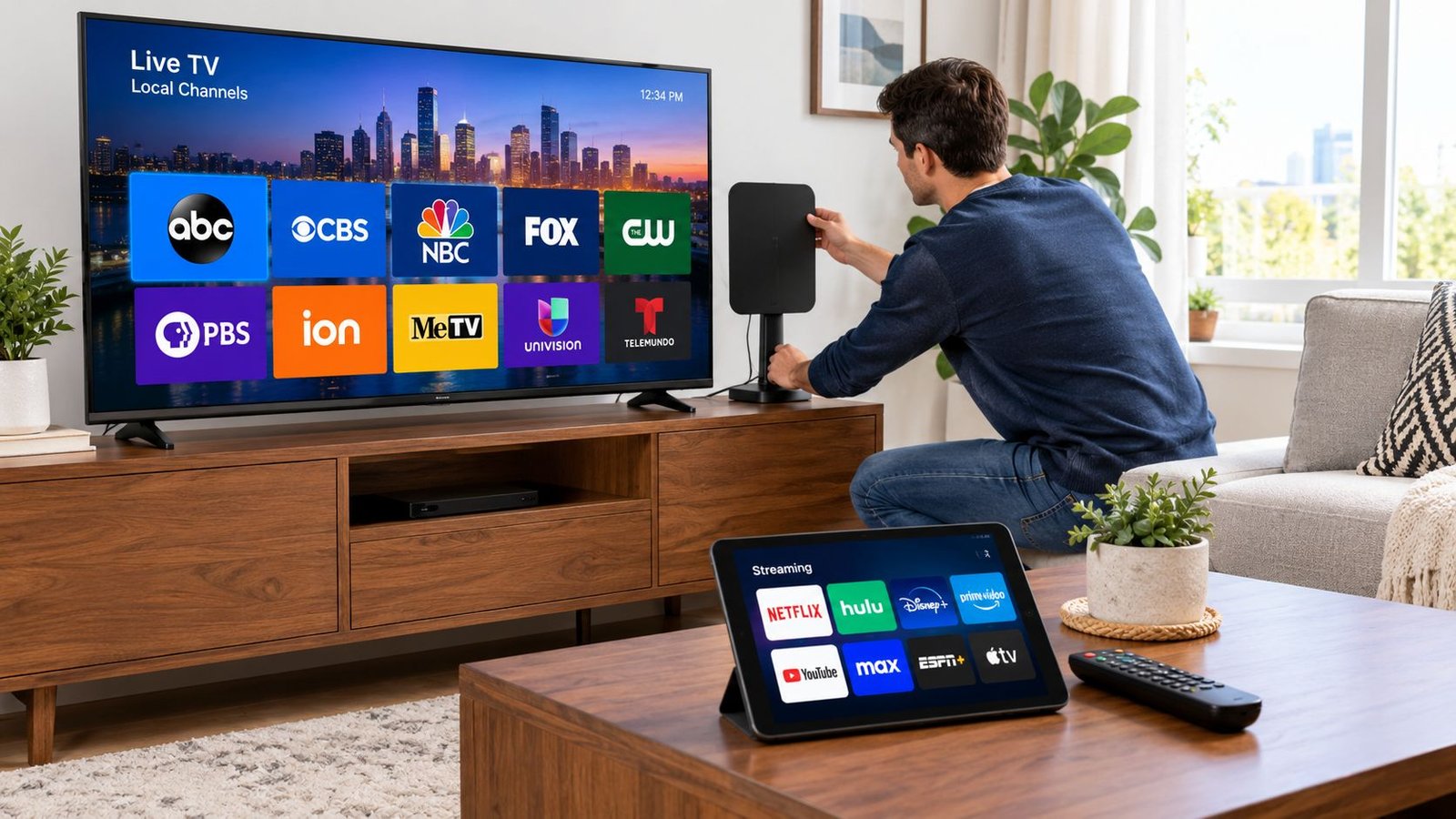
18.125 million U.S. households are OTA-only, and another 4.625 million cable or satellite homes also use antennas to get broadcast channels. That’s why the answer to how to watch local channels without cable is simple, buy an antenna first, then add streaming only if your ZIP code and viewing habits demand it.
You’re probably staring at a cable bill, wondering why you’re still paying for the local ABC, CBS, NBC, and FOX stations you mostly watch for news, weather, and the occasional game. The frustrating part is that the cheapest fix is usually the one people try last. That’s backwards, because over-the-air TV isn’t a hack anymore, it’s a mainstream viewing path with millions of households already on it (Nielsen via GAO).
Table of Contents
- Why Cutting the Cord is Easier Now
- Setting Up Your Over-the-Air Antenna
- Free News Apps Versus Full Network Access
- Comparing Paid Streaming Services for Locals
- Managing Subscriptions and Trials
- Building Your Personalized Viewing Strategy
Why Cutting the Cord is Easier Now
The old cable story made local channels sound tied to a monthly bill. That is outdated. Antennas now sit at the center of a lot of cord-cutting setups, and they are often the fastest way to get real broadcast TV without paying for another bundle. A practical guide to internet speed for IPTV is useful if you decide to add streaming later, but the antenna should come first.
A ZIP code check changes the whole decision. In a downtown apartment with green signal markers, you may pull in the big networks indoors with a simple antenna. In a rural address 60 miles from transmitters, the honest answer may be an outdoor antenna, or a paid service if the terrain blocks reception. That gap is the part many viewers miss. “Local channels” usually means the major broadcast stations, while “all local programming” can include subchannels, sports, weather, and neighborhood coverage that free news apps do not carry.
I’ve seen the same mistake over and over. People cancel cable, then expect an app to replace everything they used to get from broadcast TV. It does not. Free news apps are fine for clips and headlines, but they are not the same as full network access at airtime. If you want the ABC, CBS, NBC, and FOX feeds in real time, antenna reception is still the cleanest path.
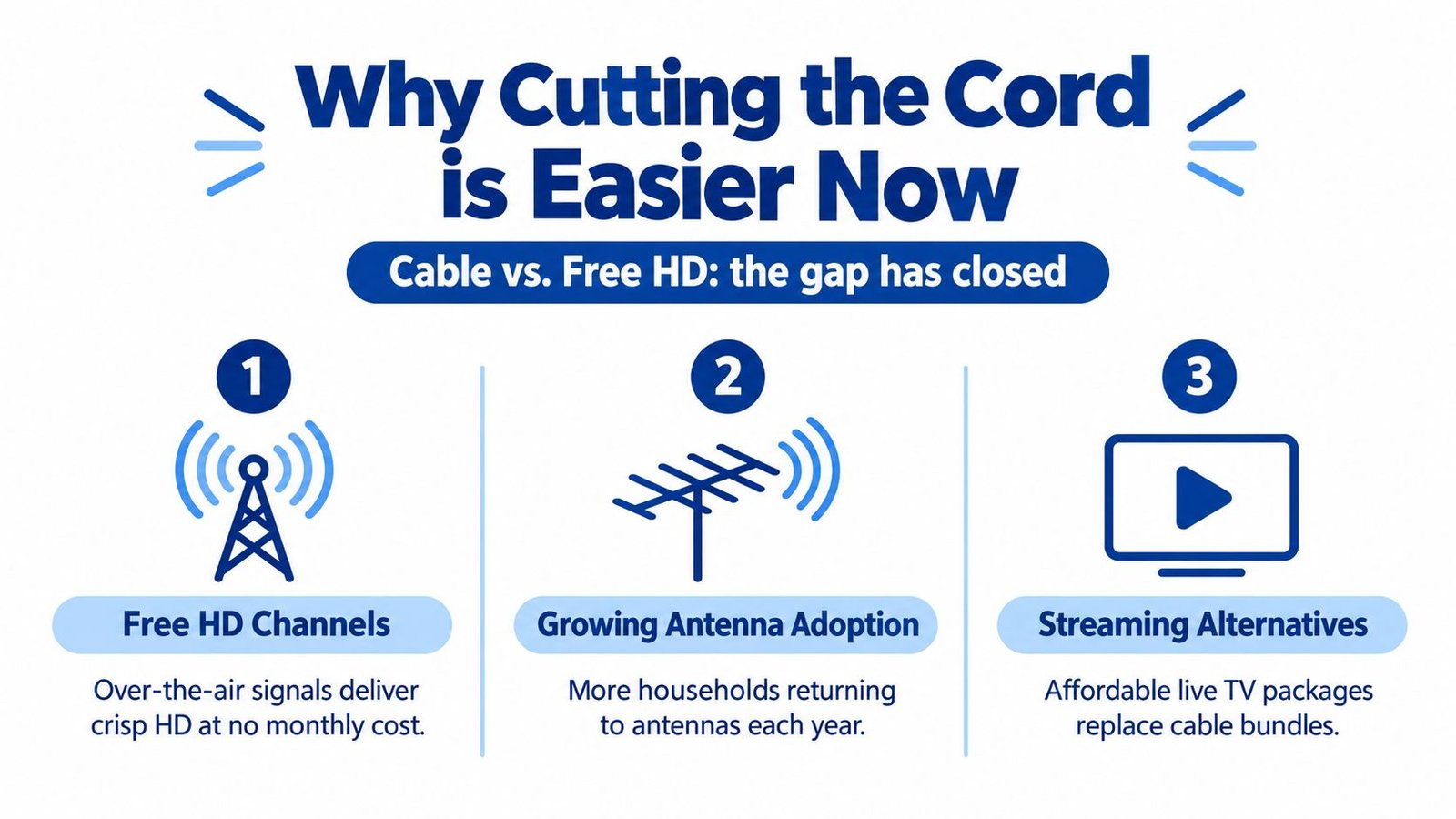
Practical rule: check your address first, then decide whether an antenna can cover your local channels before you cancel anything.
That order matters because it protects the cancellation timing. If your signal tests well, cancel cable after you confirm the channels you watch. If your address is weak indoors, do not waste time hoping a smaller antenna will fix it. Go straight to the setup that matches your location, or keep a paid option only for the channels your reception cannot reach.
Setting Up Your Over-the-Air Antenna
Start with your address, not with the antenna aisle. Check the FCC’s DTV reception maps for station availability and signal strength at the address level, because reception is local and the wrong guess wastes money and time (FCC DTV maps). Green means strong signal, yellow means moderate, brown means weak, and red means no signal. That tells you whether a cheap indoor antenna has a real shot or whether you should skip straight to an outdoor setup.
Read the map like a skeptic
A lot of people buy the first flat antenna they see, then blame the TV when half the channels disappear. Don’t do that. If the map shows green for the stations you care about, an indoor model near a window may be enough. If the map is yellow or brown, expect to need a stronger antenna, higher placement, or an outdoor unit.
The FCC notes that connecting an over-the-air antenna to the TV’s antenna or RF input and running a channel scan is often enough to receive the available digital channels. Rescan from time to time, because channel lineups change and stations move.
Do the physical setup the boring way
Put the antenna where the signal enters cleanly. That usually means high up, near a window, and away from thick walls, metal, and clutter. Then run a channel scan from the TV setup menu and write down what appears, not what the packaging promised.
Practical rule: one scan is not enough. If a channel is missing, move the antenna, scan again, and only then decide you need better hardware.
If you later add streaming to fill gaps, check the codec-aware speed targets in the guide to internet speed for IPTV and leave 25-30% headroom. Antenna viewing itself needs no internet.
Choose hardware based on your map, not hype
Indoor antennas are fine in strong-signal areas. Weak-signal homes need more gain, and difficult homes often need outdoor mounting. That is not glamorous, but it is the difference between reliable local TV and endless tinkering. If you want the full free broadcast lineup, the antenna choice has to match your address.
Free News Apps Versus Full Network Access
This is the part most guides blur together, and it causes disappointment later. Local news apps are not the same thing as full local TV access. Free apps are great for morning updates, weather, and live local news, but they don’t replace the full broadcast schedule.
If all you want is the commute report and the noon weather cut-ins, free apps can absolutely cover that. The useful ones are the local station apps, NewsON, and similar news-first platforms. They’re good at one job, which is pulling in live local news streams and clips without hardware.
The problem starts when you expect primetime and sports to show up too. They won’t. If you want every ABC, CBS, NBC, and FOX program, including primetime shows, syndicated series, and live sports, you need either an antenna or a paid live-TV service. Free apps stop at news, not the whole network lineup (CableCompare).
A news-only app is a good substitute for a news habit. It is not a substitute for a full TV habit.
That distinction matters because it decides whether your plan can be free. A person who only checks local news and weather can keep this setup simple and zero-cost. A person who wants complete network access should stop pretending apps will solve it and move straight to an antenna or a live-TV bundle.
If you’ve been mixing up “local channels” with “all local programming,” clean that up now. One gets you headlines. The other gets you the broadcast schedule.
Comparing Paid Streaming Services for Locals
Paid live-TV services are the fallback when your antenna signal is poor or when you want a broader bundle. They’re also where people overpay because they assume every service has the same locals everywhere. That assumption is wrong.
Local channel access is ZIP-code dependent. Sling notes local channels are only included in some markets and not with Sling Orange, Hulu requires ZIP-code lookup before checkout, and AirTV positions an antenna-plus-app setup for watching local HD channels across supported devices (AirTV). The point is simple, your address decides your lineup.
What to check before you pay
Before you sign up, verify three things in the service’s ZIP checker.
- Your local network list: make sure ABC, CBS, NBC, and FOX are included where you live.
- The final checkout price: some services advertise one number and charge another once extras are added.
- Your device support: don’t assume the app runs cleanly on the TV you already own.
That last one sounds basic, but it’s where a lot of setups fail. People buy the service before checking the actual market lineup, then find out one of the stations they care about is missing or the service doesn’t behave well on their hardware.
Use paid services for the right reason
Paid bundles make sense when you need more than local channels. If you only want news, they’re overkill. If you need a full entertainment package plus locals, they can be the practical choice. The trick is to treat them as a market-specific utility, not a universal replacement for cable.
You can also pair an antenna with a service instead of making the service do everything. That usually gives you a better setup, because the antenna handles reliable local reception and the paid app fills in whatever your market doesn’t cover. IPTV Subscribe also publishes ZIP-based live-TV comparisons and channel access guides, which can help you sort out which services include the local stations you need.
For a more detailed comparison of live-TV options, use this live TV streaming guide and check the ZIP lookup before you commit.
Managing Subscriptions and Trials
If you go the paid route, don’t act like every subscription needs to be permanent. That’s how people lose track of bills. Live-TV services work better when you treat them like temporary tools, not fixed household expenses.
Start with the trial, or at minimum the first billing cycle. Test the service in your ZIP code, on your TV, with the channels you care about. If a service is missing one of your locals, cancel it immediately and move on. Don’t keep paying for a workaround you already know doesn’t fit.
A smart rotation also keeps costs down. You can use one service during football season, cancel it when the season ends, then switch later if another bundle fits a different need. The point isn’t loyalty. The point is access.
Cancel at the right time
The mistake is waiting until after renewal to think about cancellation. Mark the end date as soon as you start the trial or first month. Check whether the service bills on sign-up day or calendar day, because that changes when you need to cancel.
Practical rule: if you’re testing a service for local channels, cancel before the next billing date even if you think you might keep it. You can always resubscribe later, but you can’t undo a charge you forgot to stop.
Keep one simple note for each service, what locals it carries in your ZIP, what device you tested, and when billing renews. That saves you from repeating the same expensive mistake next month.
Building Your Personalized Viewing Strategy
The right setup depends on what you watch. If you only care about morning news and weather, free apps can do the job. If you want every network show, every local newscast, and live sports, the antenna is still the core piece, and a paid service only fills the gaps.
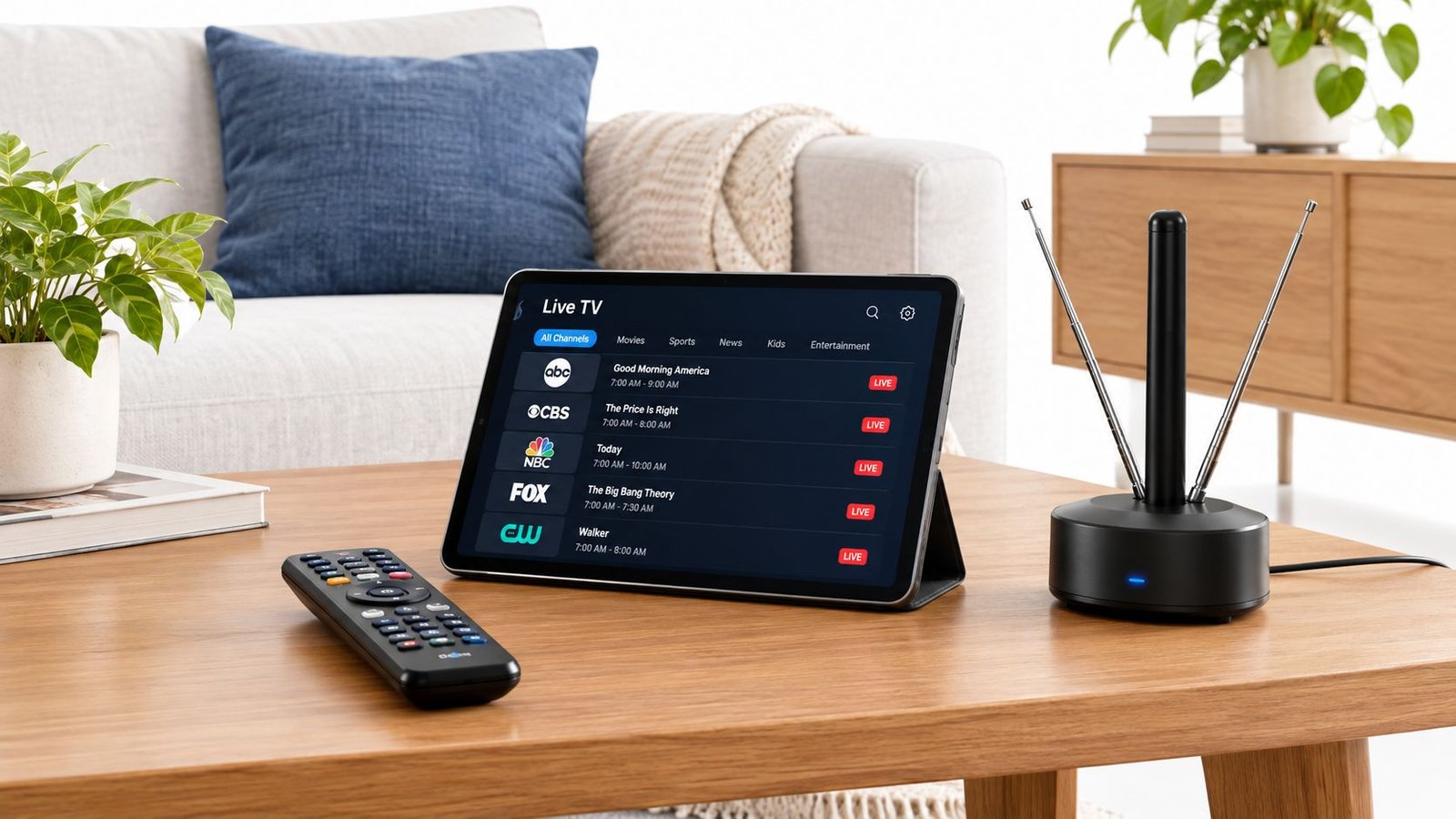
Pick the setup by use case
- News-only viewer: use free local news apps and skip the subscription.
- Mostly broadcast viewer: start with an antenna, then add a live-TV service only if your ZIP code leaves holes.
- Sports-heavy household: use an antenna for the major network games, then rotate a paid service when a specific season or channel lineup justifies it.
- Whole-home streaming household: consider an antenna plus a networked device if you want local channels across multiple screens.
The cleanest setup is usually the one with the fewest moving parts. For many viewers, that means an antenna first, a free app for news, and a paid bundle only if the address or the channel list forces the issue. If you want to see how IPTV and Android TV setups fit into a broader streaming plan, this Android TV guide is useful for understanding device-side workflows.
My blunt recommendation is this. Check your FCC reception map, install the antenna, run the scan, and don’t pay for a streaming bundle until you know what your ZIP code allows. That approach gets you the most local TV for the least money, and it keeps you from confusing a news app with a real replacement for cable.
If you want help comparing antenna-free and app-based local TV options, visit IPTV Subscribe for practical guides on live TV streaming, device setup, and channel access. It’s a good fit if you’re sorting out which services work in your ZIP code and want a cleaner way to evaluate the trade-offs before you cancel cable.
Built with the Outrank app