
Yes, YouTube TV runs on most modern Samsung Smart TVs, and getting it installed usually takes under two minutes. Press Home on your remote, open Apps, and search for “YouTube TV” to install it directly, or open the regular YouTube app and select YouTube TV from the menu. If the app doesn’t show up, check your TV’s model year and firmware before trying anything more drastic.
TL;DR:
- YouTube TV is supported on Samsung TVs from model year 2017 onward; older models cannot install the app regardless of firmware updates.
- Download issues often stem from outdated firmware, region mismatches, or the app already being installed under a different tile.
- Prioritize checking device compatibility before attempting resets or reinstallation to avoid unnecessary data loss and troubleshooting steps.
- The best experience comes from using the standalone YouTube TV app, but it can also be accessed via the YouTube app or casting from a mobile device as a workaround.
- Running Samsung’s Smart Hub connection test and following the proper troubleshooting sequence usually resolves most app installation and playback issues.
Table of Contents
- How to find and install YouTube TV on your Samsung Smart TV
- Standalone app, YouTube’s menu, or casting: three ways in
- Is your Samsung TV actually supported?
- The troubleshooting order that actually fixes things
- What the Smart Hub connection test actually checks
- Getting YouTube TV to open reliably from your home screen
- Fixing playback, sign-in, and guide problems that aren’t the app’s fault
- Confirm compatibility before you touch Smart Hub settings
- The compatibility check people skip, and why that costs them time
- Looking to compare live-TV options beyond YouTube TV
- Sources
- FAQ
How to find and install YouTube TV on your Samsung Smart TV
Samsung TVs run apps through Smart Hub, the built-in app store baked into the TV’s home screen. YouTube TV lives there as its own listing, separate from the standard YouTube app, and installing it follows the same pattern Samsung uses for every other app.
Here’s the exact sequence, based on Google’s official installation guidance:
- Press the Home button on your Samsung remote.
- Scroll to Apps and select it to open Smart Hub’s app store.
- Tap the search icon and type “YouTube TV.”
- Select the YouTube TV app from the results.
- Choose Install, then Open once installation finishes.
- Sign in with your Google account when prompted.
One detail trips up a lot of people: searching “YouTube” and searching “YouTube TV” pull up two different apps. YouTube is the video platform you already know, with clips, channels, and creator content. YouTube TV is a separate live-TV subscription app with channel guides, DVR, and live sports. They share a name and a sign-in system, but they are not interchangeable, and installing the wrong one is the most common reason people think YouTube TV “isn’t available” on their TV.
If the Install button is grayed out or missing entirely, don’t assume the app is broken. A few things typically cause this:
- Your TV’s software is out of date and needs a firmware update before the app store will let you install new titles.
- The app is already installed under a different tile, and you need Reinstall instead of Install.
- Your Samsung account region doesn’t match the app’s availability, which can hide certain listings from search.
Once installed, sign in with the Google account tied to your YouTube TV subscription. After your first sign-in, save the app to your home screen for faster access: highlight the YouTube TV tile, open the options menu on your remote, and select Move or Pin to Home depending on your model. That keeps it visible without digging through the full Apps grid every time you want to watch.
Standalone app, YouTube’s menu, or casting: three ways in
You don’t need the standalone YouTube TV app installed to start watching. Samsung TV owners have three realistic paths in, and each fits a different situation.
- Standalone YouTube TV app: This gives you the full experience, the live guide, DVR management, multiple profiles, and dedicated remote controls built for channel surfing. It’s the best option if your TV supports it and you watch regularly.
- Inside the YouTube app: Google’s help documentation confirms you can open the standard YouTube app, use the left-side navigation menu, and select YouTube TV from there. You’ll need to sign in the first time, but after that it behaves close to the standalone version. This works well as a stopgap if the dedicated app won’t install.
- Casting from a phone or tablet: If neither app cooperates, cast YouTube TV from your phone using the cast icon inside the mobile app. Your Samsung TV just needs to be on the same Wi-Fi network.
- A separate streaming device: A Roku, Fire TV Stick, or Chromecast plugged into an HDMI port sidesteps Samsung’s app store entirely, useful if your TV model turns out to be too old for native support.
The standalone app is worth prioritizing because DVR recordings, multiple viewer profiles, and the full channel guide only work properly there. Casting and the in-YouTube route are reasonable workarounds, but they’re not built for the same day-to-day convenience.
Is your Samsung TV actually supported?
Before touching firmware updates or resets, confirm your TV is on the list. Google specifies that YouTube TV supports Samsung Smart TVs from model year 2017 onward. If your set is older than that, the missing app isn’t a bug, it’s a hardware limit, and no amount of troubleshooting will change it.
To check your TV’s model year, open Settings, then Support, then About This TV, and look at the model number. Samsung’s naming convention typically encodes the year in that string, or you can search the exact model number online to confirm.
A few other things worth ruling out before you assume the worst:
- Your Samsung account region may not match where YouTube TV operates, which can hide the app from search results even on a supported TV.
- A very old firmware version can make an otherwise supported TV act like it isn’t, since the Smart Hub app store itself needs updating to see newer listings.
- Sideloading an APK file to force the app onto an unsupported TV isn’t something Samsung or Google supports, and it can create more problems than it solves. Stick to the official Smart Hub path.
If your model year checks out and the region is correct, the issue is almost always software, not hardware, which means it’s fixable.
The troubleshooting order that actually fixes things
Samsung’s own troubleshooting guidance lays out a specific order for fixing apps that won’t install, won’t open, or keep crashing. Following that order matters: skipping ahead to a factory reset when a simple restart would have worked just costs you time and wipes data you didn’t need to lose.
- Restart the TV properly. Hold the power button on your remote until the TV reboots on its own. This is different from unplugging it, which can skip the shutdown process that clears temporary cache. A proper soft restart preserves app state better than a cold unplug.
- Check for a firmware update. Go to Settings, then Support, then Software Update, and select Update Now. Outdated firmware is one of the most common reasons apps fail to install or crash immediately after opening.
- Delete and reinstall the app. From Apps, open the settings icon, select YouTube TV, and choose Delete. If Delete isn’t available, Samsung’s system is recommending Reinstall instead, which achieves the same result without fully removing the listing.
- Run a Smart Hub connection test. This checks whether the problem is your network, your internet provider, or Samsung’s own servers, before you do anything that erases data.
- Reset Smart Hub only if everything else fails. This is the last resort because it removes your Samsung account link, app data, and any saved preferences.
Each step gets more invasive than the last, which is exactly why the order matters. A restart costs you nothing. A Smart Hub reset costs you your saved logins and app arrangement.
Pro Tip: Write down your Google account email and TV model number before starting step 3. If you end up needing to reinstall or reset later, having those ready saves a second trip through your phone’s settings.
Most sign-in failures, frozen guides, and apps that install but never open resolve somewhere between steps 1 and 3. Reaching step 5 usually means something upstream, like your network or Samsung’s servers, is the actual problem, not the app itself.
What the Smart Hub connection test actually checks
Before resetting anything, run the Smart Hub connection test. It’s a built-in diagnostic, not a guess, and it tells you where the failure actually lives.
According to Samsung’s own reset and diagnostic guidance, the test checks four separate points: your home network connection, your internet service provider, Samsung’s own servers, and the Apps service itself. That breakdown matters because each failure points to a different fix. A network failure means check your router. A Samsung server failure means the problem is out of your hands and temporary. An Apps service failure often means the app store itself needs a reset, not your whole TV.
- If the network test fails, restart your router and modem before touching the TV again.
- If Samsung’s servers fail the test, wait and retry later since this is on Samsung’s end.
- If the Apps service specifically fails, a Smart Hub reset is more likely to help.
Resetting Smart Hub, when it’s actually necessary, wipes your Samsung account link and all app data, meaning every app gets reinstalled and every login redone. Have your Google account credentials ready before you start. Menu wording varies by model year: newer TVs list this under Settings, then Support, then Device Care, then Self Diagnosis, while older models may show Self Diagnosis directly under Support without the Device Care step.
Getting YouTube TV to open reliably from your home screen
Once YouTube TV is installed, save it to your home screen so you’re not searching for it every time. Highlight the tile in Apps, open the remote’s options menu, and choose Pin to Home or Move, depending on your model year.
- Pinning the app tile keeps it visible on the main Smart Hub row without relying on any automatic behavior.
- Autorun Last App, the setting that’s supposed to reopen your last-used app automatically, is inconsistent with YouTube TV specifically.
- Samsung Community reports from users describe YouTube TV not reliably triggering autorun on certain models and firmware versions, even when the setting is enabled.
Don’t build your routine around autorun working every time. Pin the app manually instead, and treat autorun as a nice bonus when it happens rather than something to depend on.
Pro Tip: If autorun stops working after a firmware update, it’s a known inconsistency rather than something wrong with your setup. Report it through Samsung’s support chat so it gets logged, but don’t expect an immediate fix.
Fixing playback, sign-in, and guide problems that aren’t the app’s fault
Some of the most frustrating YouTube TV problems on Samsung TVs have nothing to do with the app itself. They’re network or account issues wearing an app’s clothing.
- Check your internet speed and connect to 5 GHz Wi-Fi when possible, since the 2.4 GHz band gets crowded and can cause buffering or a guide that loads slowly.
- Restart your modem and router if the connection test flagged a network issue, unplugging both for about 30 seconds before powering back on.
- Confirm any casting device is on the same Wi-Fi network as your TV, since casting silently fails when phone and TV are on different networks or bands.
- Sign out and back in if the guide won’t load or shows an account error: go to your account icon inside YouTube TV, sign out, then sign back in with your Google credentials.
- Verify your account status on a phone or computer first, checking tv.youtube.com to confirm your subscription is active before assuming the TV app is broken.
If none of that clears it up and you contact Samsung or YouTube TV support, have your TV model number, current firmware version, and a screenshot of any error code ready. Support teams move faster when they don’t have to ask you for that information first, and a specific error code narrows down the fix immediately instead of starting from scratch.
If your Samsung TV also handles other live-TV or IPTV setups, our Samsung TV streaming setup guide walks through the same kind of app and network checks for other services.
Confirm compatibility before you touch Smart Hub settings
A recommended workflow starts in one place: the supported-device list, not the settings menu. Checking whether your Samsung TV’s model year actually supports YouTube TV takes under a minute and prevents an unnecessary Smart Hub reset that wipes saved logins for every app on your TV, not just YouTube TV.
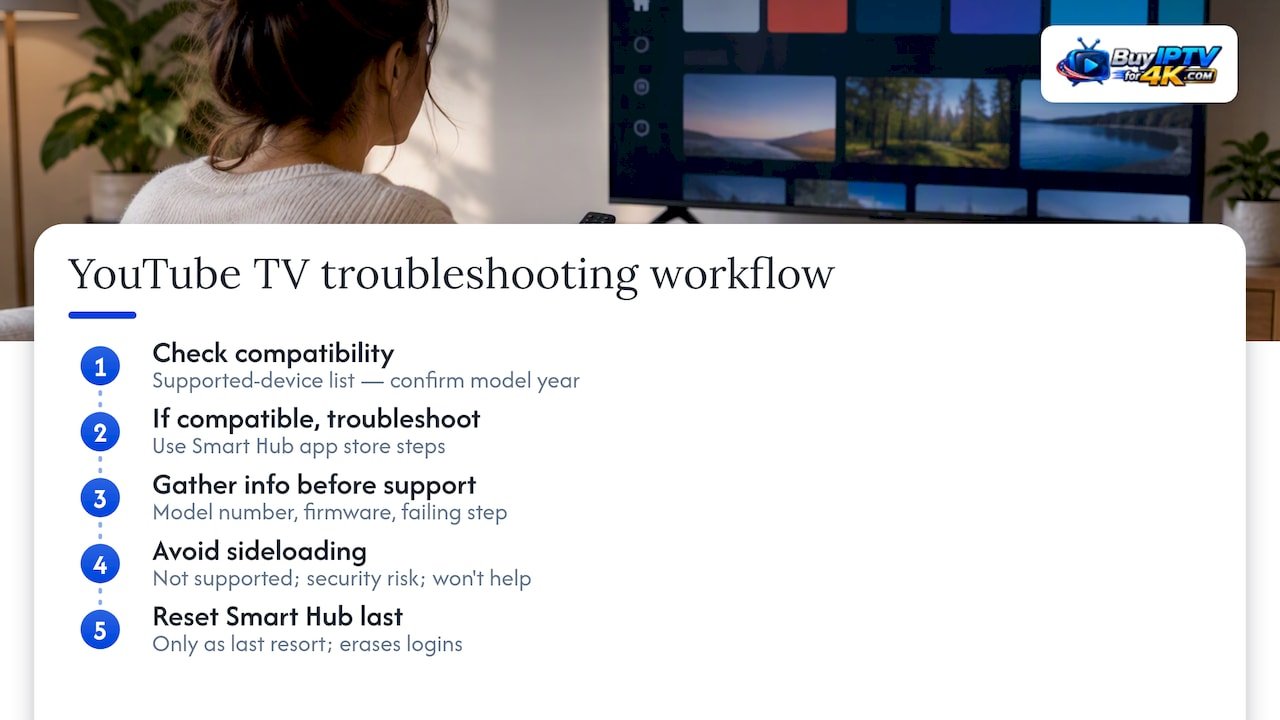
Before contacting Samsung or YouTube TV support, gather your TV’s exact model number, current firmware version, and a note on which step in the troubleshooting sequence first failed. That information turns a long back-and-forth into a quick fix.
Skip sideloading entirely. It isn’t officially supported on Samsung TVs, it can introduce security risks, and it won’t fix an app that’s failing for a network or account reason anyway. The Smart Hub app store, worked through in order, resolves nearly everything that’s actually fixable.
The compatibility check people skip, and why that costs them time
Most YouTube TV problems on Samsung TVs get treated as app bugs when they’re really compatibility questions in disguise. People jump straight to reinstalling or resetting Smart Hub without checking whether their TV’s model year ever supported the app in the first place. That’s backward. A five-minute check of your model number against Google’s supported-device list should always come before any fix that erases data.
The conventional advice, restart, then reinstall, then reset, isn’t wrong, but it assumes compatibility as a given. It isn’t. A 2016 Samsung TV will fail every step in that sequence for the same reason: it was never on the list. No firmware update fixes that.
If there’s one thing worth prioritizing, it’s sequencing your effort against risk. Confirm the TV can run the app before doing anything to it. Restart before you reinstall. Reinstall before you reset. Each step you skip ahead of costs you more to undo than the last one.
— ANASS
Looking to compare live-TV options beyond YouTube TV
If you’ve gotten YouTube TV running and now find yourself wondering whether it’s actually the best fit for your household, that’s a separate question worth answering on its own terms. Live-TV streaming services can be broken down with honest pricing, including hidden regional fees that rarely show up until your first bill.

Our comparison of top live-TV streaming services lays out how YouTube TV stacks up against alternatives on cost and channel lineups, and our device setup guides cover getting live TV running on Android TV boxes if your Samsung TV turns out to be too old for native support. If you’re still deciding what to watch and how to pay for it, start with our guide to choosing a live-TV service to see what fits your household before you commit to a monthly bill.
Sources
- Download & control YouTube TV on your TV
- An app will not work on my Samsung TV or projector
- Solved: YouTubeTV with Autorun Last App – Samsung Community – 3125166
FAQ
Why can’t I download YouTube TV on my Samsung TV?
The most common reasons are an outdated TV model (Google supports Samsung TVs from 2017 onward), outdated firmware blocking the app store listing, or a Samsung account region mismatch. Check your model year first, then update your firmware through Settings, Support, Software Update.
Why is there no YouTube on my Samsung Smart TV?
If YouTube itself is missing rather than YouTube TV, it’s usually a firmware or app-store sync issue rather than a compatibility problem, since YouTube supports a much broader range of Samsung models. Restart the TV, check for a software update, and search for the app again in the Apps section.
How do I get my Samsung TV to default to YouTube TV?
Pin YouTube TV to your home screen through the Apps menu options rather than relying on Autorun Last App, since community reports show that setting doesn’t reliably reopen YouTube TV on every model or firmware version. Manually pinning the tile gives you consistent one-click access instead.
How do I add the YouTube TV app to my Samsung TV’s home screen?
Highlight the YouTube TV tile in your Apps screen, open the options menu on your remote, and select Pin to Home or Move, depending on your TV’s model year. This keeps the app visible without searching the full Apps grid every time.
Does YouTube TV work the same way inside the regular YouTube app?
Yes, Google’s help documentation confirms you can open the standard YouTube app and select YouTube TV from the left navigation menu after signing in. It’s a solid backup route if the standalone app won’t install on your TV.