

For smooth IPTV playback, plan on bandwidths for SD, 720p, 1080p, and 4K of roughly low to mid Mbps ranges depending on codec, reflecting typical sustained speeds rather than exact numbers. Those numbers assume steady, sustained speed, not the peak number your provider advertises. A connection that “hits” 100 Mbps but drops to 12 Mbps during dinner hour will buffer a 1080p stream every time. If you’re unsure where you stand, run a speed test on the actual streaming device, not your phone in the next room.
TL;DR:
- Most households should plan for at least 25 Mbps for a single 1080p stream and add 25-30% extra headroom to accommodate background traffic.
- Ethernet connections generally provide more stable streaming than Wi-Fi, especially on the 2.4 GHz band, and can drastically reduce buffering issues.
- Simple device tests during peak hours are more accurate for diagnosing speed issues than phone-based speed tests and can prevent unnecessary plan upgrades.
- Buffering problems often stem from network interference or hardware limits rather than slow plan speeds, so troubleshooting should focus on local setup first.
Table of Contents
- What Internet Speed Do You Actually Need for IPTV?
- How to Calculate the Right Plan Speed for Your Household
- Why the Codec Behind Your Stream Changes Everything
- Ethernet vs. Wi-Fi: Which One Actually Fixes Buffering?
- How to Test Your Real IPTV Speed at the Device
- Buffering Isn’t Always a Speed Problem
- What We’ve Learned Testing IPTV Setups
- Do You Need Fast Upload Speed for IPTV?
- Data Caps and Throttling Can Quietly Wreck IPTV Performance
- Live TV Needs More Stability Than On-Demand Content
- Router Settings That Actually Help IPTV Playback
- Do VPNs Slow Down IPTV Streaming?
- Test Before You Upgrade
- Sources
What Internet Speed Do You Actually Need for IPTV?
The gap between “advertised speed” and “speed your TV actually gets” is where most buffering complaints start. IPTV channels behave differently than Netflix or YouTube because most live channels stream at a fixed bitrate. They can’t scale down the way an on-demand service does when your connection dips, so the Ant Media codec guide recommends budgeting roughly double the raw bitrate as your sustained capacity target, just to build in a buffer against real-world network noise.
Here’s how that plays out by resolution, cross-referenced against Redixel TV’s 2026 planning guide and Infomir’s bandwidth reference:
| Quality | Typical raw bitrate | Recommended sustained speed |
|---|---|---|
| SD | 1 to 2 Mbps | 3 to 5 Mbps |
| 720p (HD) | 2 to 5 Mbps | 10 Mbps |
| 1080p (Full HD) | 5 to 12 Mbps | 15 to 25 Mbps |
| 4K (H.264) | 25 to 40 Mbps | 50 to 80 Mbps |
| 4K (H.265/HEVC) | 12 to 20 Mbps | 25 to 40 Mbps |
Notice the split on 4K. That’s not a typo, it’s the codec doing the work. HDR and 50/60fps sports feeds push toward the higher end of each range since more visual information has to move every second. This is also why headroom matters more than the headline number on your bill: a stream sitting right at its minimum bitrate with zero cushion will stutter the moment your neighbor’s kid starts a game download or your smart thermostat decides to sync.
How to Calculate the Right Plan Speed for Your Household
Single-stream numbers only tell half the story. Most households run more than one screen at once, so you need a simple formula before picking a plan.
- Add up your simultaneous streams. List every TV, tablet, or device that might stream IPTV at the same time, then assign each one its resolution.
- Sum the recommended sustained Mbps for each stream. Two 1080p streams at 20 Mbps each equals 40 Mbps before anything else touches your network.
- Add 25 to 30 percent headroom. This covers background traffic like phone updates, cloud backups, and other household devices, per the household-planning guidance from Redixel TV.
- Round up to the nearest common plan tier. ISPs sell speed in blocks (25, 50, 100, 200 Mbps), so match your total to the next tier up, not down.
A few worked examples make this concrete. A single viewer watching 1080p needs roughly 20 to 25 Mbps sustained. A two-screen household mixing HD streams lands around 50 Mbps once headroom is added. A household running one 4K stream plus two HD streams should look at 100 Mbps plans, especially with H.264 content in the mix. As a rough rule, 50 Mbps covers most two-person HD homes, while 100 Mbps is the safer floor for mixed 4K and HD households.
Why the Codec Behind Your Stream Changes Everything
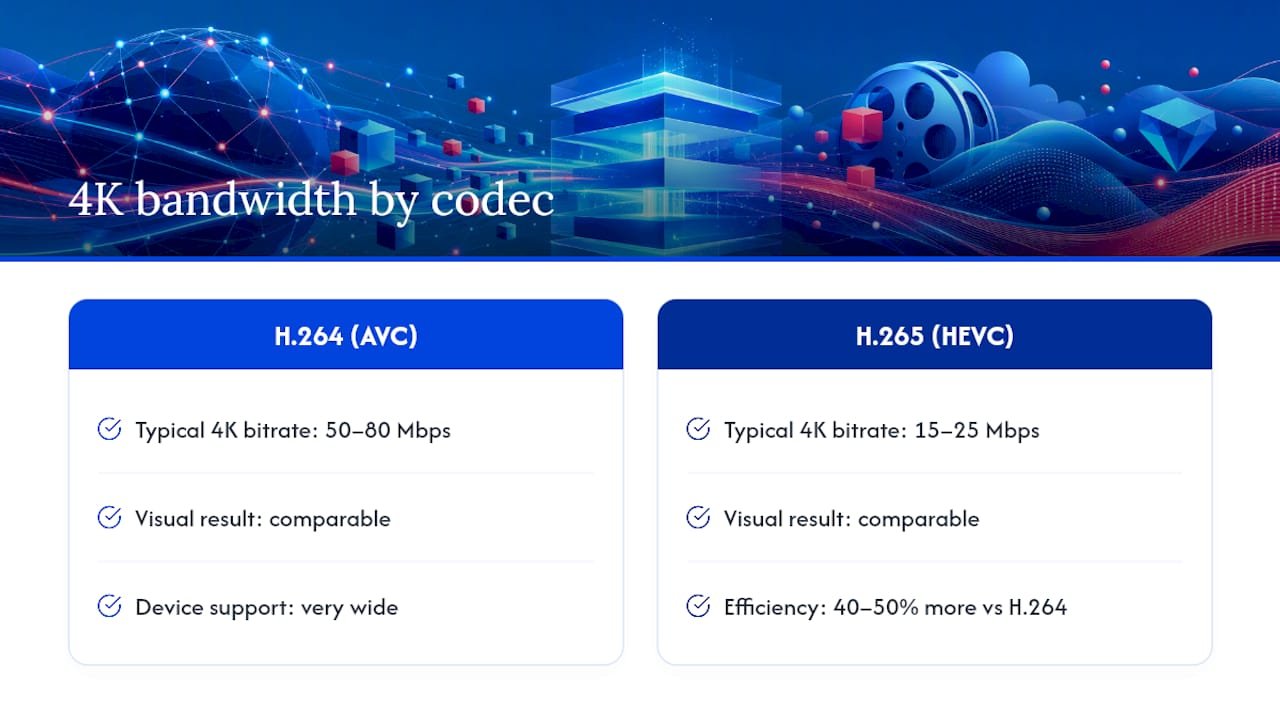
Two channels can look identical on your TV and still need wildly different bandwidth, purely because of how they’re encoded. H.265, also called HEVC, compresses video roughly 40 to 50 percent more efficiently than the older H.264 standard, according to OBSBOT’s bandwidth breakdown. The visual result is nearly identical. The bandwidth bill is not.
For a 4K stream specifically, H.264 typically demands 50 to 80 Mbps of sustained capacity, while H.265 delivers the same picture at 15 to 25 Mbps. That’s the difference between needing a premium gigabit-adjacent plan and getting by comfortably on mid-tier broadband.
The catch is compatibility. Older streaming boxes, budget smart TVs, and some legacy set-top devices don’t decode H.265 at all, which forces the provider to fall back on H.264 even if the source content was encoded more efficiently. Before assuming you need a faster plan, check whether your device and IPTV app actually support HEVC playback. Sometimes the fix isn’t more bandwidth, it’s a $30 streaming stick that decodes newer formats.
Ethernet vs. Wi-Fi: Which One Actually Fixes Buffering?
Bandwidth is only half the equation. Consistency is the other half, and this is where Wi-Fi quietly sabotages a lot of IPTV setups. Voostream’s connection comparison found Ethernet typically holds latency under 1 millisecond with near-zero packet loss, while Wi-Fi runs 5 to 20 milliseconds of latency and 0.1 to 2 percent packet loss depending on interference. That packet loss is often the real culprit behind pixelation and freezing, not raw speed.
A well-configured 5 GHz Wi-Fi connection can perform close to Ethernet if your router is nearby and interference is low, as explained in how to make a TV look better in your living room. The 2.4 GHz band is the weakest option for IPTV. It’s slower and more crowded with other household devices.
Before touching your router settings, check these:
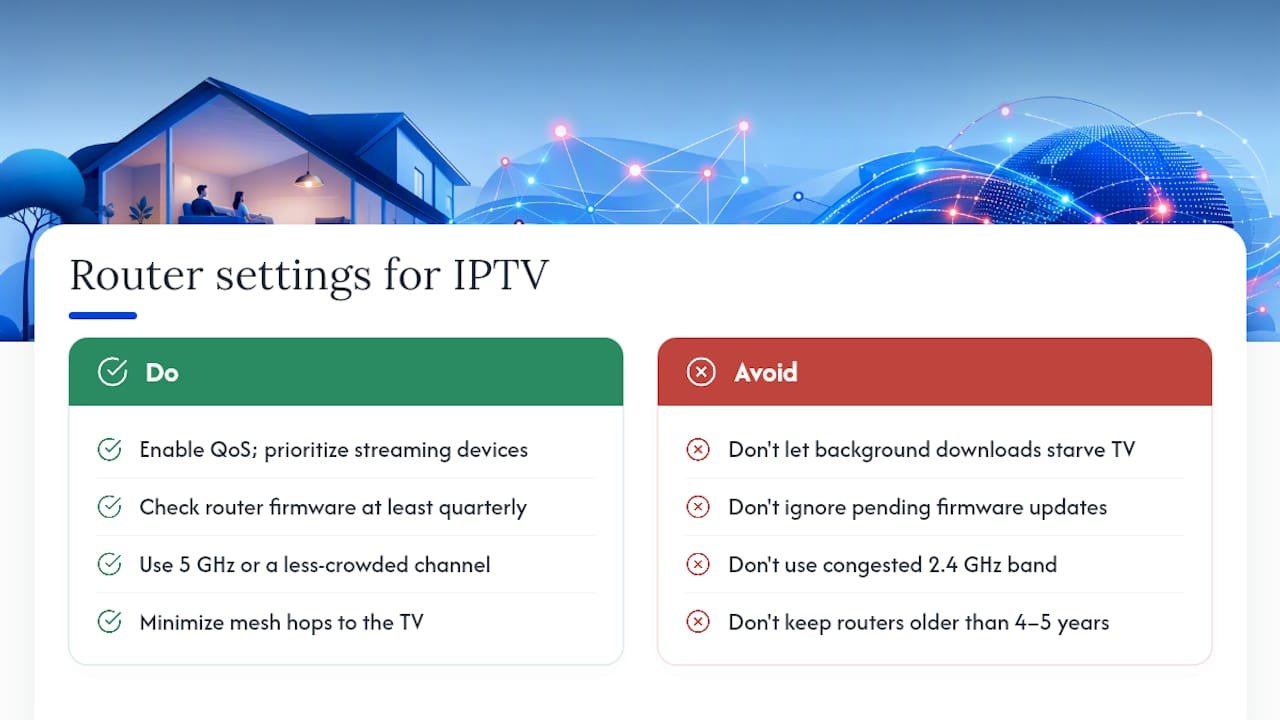
- Quality of Service (QoS) settings, so streaming traffic gets priority over background downloads.
- Router firmware, since outdated firmware causes dropped connections more often than people expect.
- Wi-Fi channel selection, avoiding channels your neighbors are already using.
- Mesh network hop count, since each extra mesh node between router and TV adds latency.
Pro Tip: Run a cable directly from your router to your main TV if it’s within reach. A $10 Ethernet cable often solves buffering issues that months of router troubleshooting never fixed.
How to Test Your Real IPTV Speed at the Device
A speed test app on your phone tells you almost nothing about what your TV is actually getting. Speedof notes that phones sitting near the router routinely show higher speeds than devices across the room or on a different floor.
- Test on the streaming device itself, or a laptop plugged into the same outlet as the TV, during peak evening hours between 7 and 10 PM when network congestion is highest.
- Run the test twice, once on Wi-Fi and once on Ethernet, noting packet loss and jitter if your test tool reports them.
- Compare your results against the sustained Mbps targets for your resolution. If your device tests below the recommended number for the quality you’re watching, you’ve found your bottleneck before spending a dime on a plan upgrade.
Buffering Isn’t Always a Speed Problem
Plenty of buffering complaints have nothing to do with your internet plan. Wi-Fi interference from microwaves and baby monitors, an overloaded router juggling a dozen devices, an underpowered streaming box, and a bloated app cache all cause the exact same symptoms as insufficient bandwidth.
Before assuming you need more speed, work through these:
- Switch the TV to Ethernet, even temporarily, to isolate whether Wi-Fi is the problem.
- Clear the IPTV app’s cache, since a bloated cache slows playback on almost every streaming box over time.
- Power-cycle the router and the streaming device, waiting a full 30 seconds before powering back on.
- Check for firmware updates on both the router and the streaming device.
If buffering persists after all of that, and a device-level speed test still shows packet loss or consistent evening slowdowns, that’s a signal to call your provider. Consistent slowdowns at the same time every night usually point to network congestion on the ISP’s side, not your home setup.
What We’ve Learned Testing IPTV Setups
Our coverage includes legal IPTV services and streaming setup guidance, highlighting a few practices that come up again and again across working setups. Use Ethernet for your main TV whenever the layout allows it. Prefer apps and devices that support H.265 playback, since it can cut your 4K bandwidth needs nearly in half. And always plan your ISP tier with 25 to 30 percent headroom above your calculated need, not right at the line. For deeper guidance on choosing a legal IPTV service or understanding how IPTV technology works, additional guides walk through device compatibility and pricing in more detail.
Do You Need Fast Upload Speed for IPTV?
Most people fixate on download speed and ignore upload entirely, and for basic live-channel viewing, that’s usually fine. Standard IPTV playback is almost entirely a download-side activity: your device pulls the stream down, and upload traffic is limited to small control signals telling the server which channel you want.
That changes for interactive features. Two-way services like cloud DVR uploads, some multi-view or picture-in-picture functions, and any IPTV app with built-in video calling or screen-sharing features need real upload capacity, typically at least 3 to 5 Mbps for basic interactivity and more if you’re uploading recorded content to cloud storage. If your household also uses video conferencing, cloud backups, or online gaming on the same connection while streaming, upload contention can create lag on interactive IPTV features even when download speed looks fine on paper.
Most cable and fiber plans handle this without issue, but DSL and satellite connections often cap upload speed well below 5 Mbps even on plans with respectable download numbers. If your IPTV service includes any interactive or cloud-based feature and you’re on one of those connection types, check your plan’s upload figure specifically. It’s usually listed separately from download speed in your provider’s plan details, and it’s easy to overlook.
Data Caps and Throttling Can Quietly Wreck IPTV Performance
A fast plan doesn’t help much if your provider throttles you halfway through the month. Data caps are less common on cable and fiber than they once were, but they still show up on many satellite, fixed wireless, and some rural broadband plans. Once you cross the cap, providers often slow your connection dramatically rather than cutting it off entirely, which shows up as sudden buffering that has nothing to do with your router or your IPTV app.
IPTV is a heavy data consumer by nature. A single 1080p stream running four hours a day can burn through 30 to 50 gigabytes a month on its own, and a household running multiple screens or 4K content can chew through several hundred gigabytes without much effort. If your plan caps at 250 GB or 1 TB, check your usage against your viewing habits before assuming a speed upgrade will fix your buffering.
Throttling isn’t always cap-related, either. Some ISPs deprioritize video streaming traffic during peak congestion hours, a practice that shows up as evening-specific slowdowns even when your daytime speed tests look perfect. If your buffering consistently starts around the same time every evening, that pattern points toward network-level throttling rather than a household equipment problem. Contacting your provider and asking directly about peak-hour traffic management policies is a faster path to an answer than troubleshooting your router for the tenth time.
Live TV Needs More Stability Than On-Demand Content
Streaming a movie and watching a live sports feed put very different demands on your connection, even at the same resolution. On-demand platforms use adaptive bitrate streaming, quietly downgrading quality for a few seconds if your connection dips, then recovering once bandwidth stabilizes. Most viewers never notice the adjustment.
Live IPTV channels frequently skip that flexibility. Many are delivered at a fixed bitrate, which means there’s no lower gear to shift into when your network gets congested. The stream either gets the bandwidth it needs or it freezes and buffers, which is exactly why the Ant Media codec guide recommends treating live channel bitrates as a floor, not a target, and building in real headroom above it.
This distinction matters most during high-traffic broadcast moments. A championship game or a season finale pulls in more concurrent viewers on the provider’s end and more simultaneous devices on your own network, often kids’ tablets and a second TV all firing up around the same kickoff time. On-demand content shrugs this off by dropping quality briefly. Live IPTV has less room to absorb the spike gracefully. If your household leans heavily toward live sports or news over recorded content, weight your speed planning toward the higher end of the sustained Mbps ranges rather than the minimum.
Router Settings That Actually Help IPTV Playback
Your router configuration affects IPTV performance as much as your plan tier does, and most of the useful settings take five minutes to check. Start with Quality of Service, if your router supports it, and set streaming devices or their IP addresses as high priority. This keeps a big background download from starving your TV mid-episode.
Firmware updates matter more than most people assume. Manufacturers regularly patch bugs related to connection drops and Wi-Fi stability, and a router running two-year-old firmware is a common, invisible cause of intermittent freezing. Check your router’s admin panel for pending updates at least once a quarter.
Channel congestion on the 2.4 GHz band is another quiet killer, especially in apartment buildings where a dozen networks compete for the same limited channels. Switching your router to a 5 GHz band, or manually selecting a less crowded channel, often clears up stuttering that looked like a bandwidth problem. If you’re running a mesh system, keep the number of hops between your main router and the TV as low as possible. Each additional mesh node adds a small amount of latency, and in a fixed-bitrate live stream, small delays compound into visible stutter.
Finally, if your router is more than four or five years old, it may simply lack the processing power to handle multiple simultaneous IPTV streams and household traffic at once, regardless of your internet plan’s speed. That’s a hardware limitation, not a service issue, and no amount of settings tweaking fixes it.
Do VPNs Slow Down IPTV Streaming?
Yes, almost always, though the size of the impact depends heavily on the VPN and server you choose. Routing your IPTV traffic through a VPN adds encryption overhead and typically sends your data through a server that’s farther away than your ISP’s direct route, both of which add latency and can reduce throughput.
For most viewers using a VPN for privacy or to access region-specific legal content, the practical effect is usually a 10 to 25 percent drop in usable bandwidth, though this varies widely by VPN provider, server load, and distance to the server. If your baseline connection has plenty of headroom above your streaming needs, you likely won’t notice. If you’re already streaming close to your plan’s ceiling, a VPN can be the difference between smooth 1080p and a buffering mess.
Server choice matters more than most people realize. Choosing a VPN server geographically close to you, rather than one on the other side of the country or overseas, cuts down the added latency significantly. Some VPN providers also offer servers optimized specifically for streaming traffic, which tend to hold up better under sustained live-channel bitrates than general-purpose servers.
If you’re troubleshooting buffering and running a VPN, the first diagnostic step is simple: disable it temporarily and rerun your device-level speed test. If performance improves noticeably, you’ve found your bottleneck, and it’s worth shopping for a faster VPN server or provider rather than blaming your ISP plan.
Test Before You Upgrade
The single most common mistake IPTV viewers make is upgrading their internet plan before checking what’s actually happening at the device. A router problem, an old streaming box, or a codec mismatch all masquerade as “not enough speed,” and none of them get fixed by paying for a bigger plan.
My rule of thumb is simple: test at the device, not near the router, and always add 25 to 30 percent headroom above whatever number you calculate. Before reaching for a faster tier, try an Ethernet cable and check whether your app supports H.265. Half the time, that’s the whole fix.
— ANASS
Sources
Ready to put these numbers to use? Browse Iptv-subscribe’s guide on what IPTV actually is and how it works to check device compatibility, or jump straight to a vetted legal IPTV service comparison once you know your bandwidth is ready.