

Samsung TV Plus is a free, ad-supported live TV service built into most Samsung Smart TVs, so if your set was made in the last several years, you already have it. There’s no subscription, no login required, and no credit card. Open the TV Plus app or tile on your home screen, and you’re watching live channels in seconds.
TL;DR:
- Samsung TV Plus is built into most Samsung Smart TVs from 2016 onward, requiring a recent firmware update for optimal performance.
- To access it, newer models use the app tile on the home screen, while older models rely on channel guide navigation, often appearing as a channel group.
- The service offers hundreds of channels across genres like news, sports, movies, kids’ programming, and niche interests, but it lacks live marquee sports events and pay-per-view content.
- A stable internet connection is essential for streaming, but no Samsung account is necessary for basic viewing; signing in adds personalized features.
- Common issues like missing tiles or buffering often stem from outdated firmware or network problems, which can usually be fixed by software updates and router resets.
Table of Contents
- How to Watch Live TV on Samsung TV: Step-by-Step
- Which Samsung Devices Support TV Plus?
- What Can You Actually Watch on Samsung TV Plus?
- Do You Need an Internet Connection or a Samsung Account?
- Fixing Common Samsung TV Plus Problems
- Where to Find the Current Channel Lineup
- Publisher Tips: Prepare Your TV and Skip Unsupported Streams
- Why Samsung TV Plus Matters for Cord-Cutters
- Curated IPTV Guides When You Want More Than Free Channels
- Sources
How to Watch Live TV on Samsung TV: Step-by-Step
Getting live TV Samsung style running takes less time than finding the remote in your couch cushions. The exact path depends on how old your TV is, but both routes land you in the same place.
- On newer Samsung TVs (2021 and later): Press the Home button, scroll to the app bar, and select the Samsung TV Plus tile. It usually sits near the top row alongside Netflix and other preloaded apps.
- On older supported models: Tune to any live channel first, then press the Down arrow on your remote to pull up the channel guide. TV Plus often appears as a channel group inside that guide rather than as a standalone app icon, a quirk Samsung documents in its official support article.
- Browse the Guide to see what’s airing across every genre, or switch to On Demand for movies and shows you can start anytime.
- Change channels the same way you would with cable, using the channel up/down buttons or by picking a title directly from the guide grid.
- If the tile is missing entirely, check your Home screen’s app list for a hidden or moved icon, or search the Samsung Apps store for “TV Plus” and reinstall it.
No payment screen ever pops up. Samsung preinstalls the service on qualifying hardware specifically so there’s zero friction between turning on the TV and watching something live.
Which Samsung Devices Support TV Plus?
TV Plus isn’t limited to televisions anymore. Samsung has folded the service into several device families, though the experience varies by hardware and how recently it received a firmware update.
- Smart TVs, generally 2016 models and newer, running Samsung’s Tizen operating system.
- Smart Monitors, which double as entry-level smart displays with TV Plus baked in.
- Galaxy phones and tablets, through the standalone Samsung TV Plus app on the Galaxy Store.
- Family Hub refrigerators, letting you stream news or a show while cooking.
Older Tizen models tend to bury TV Plus inside the channel guide rather than showing it as a dedicated app tile, a distinction Samsung’s own compatibility notes confirm. Newer models put it front and center on the app bar. Either way, firmware matters: an outdated build can hide features or break playback entirely, so checking for updates before troubleshooting anything else saves a lot of guesswork.
Pro Tip: Go to Settings > Support > Software Update > Update Now before you assume a feature is broken. A stale firmware version is behind more TV Plus glitches than people realize.
What Can You Actually Watch on Samsung TV Plus?
The lineup spans a genuinely wide mix of genres, not just filler channels nobody asks for. You’ll find:
- Live news and local-style coverage
- Sports channels covering leagues and highlight programming
- Movies, sitcoms, and drama channels
- Music video and concert channels
- Kids’ programming blocks
- Specialty channels built around true crime, cooking, and niche interests
Samsung’s product page states the service offers hundreds of live channels and thousands of on-demand titles at no cost, and the official channel list is the only reliable place to check exact channel numbers, since the lineup shifts as licensing deals change.
Sports coverage on TV Plus leans toward highlight shows, classic games, and dedicated sports-news channels rather than live rights to marquee games you’d catch on a premium sports package. It’s ad-supported, which means commercial breaks are part of the deal, and you won’t find blackout-restricted live events or pay-per-view fights here. For that kind of appointment viewing, most cord-cutters end up pairing TV Plus with something else.
Do You Need an Internet Connection or a Samsung Account?
Yes to internet, no to an account for basic viewing. TV Plus streams over the internet like any other app, so your TV needs to be connected, whether by Wi-Fi or a wired Ethernet link, before a single channel will load.
- Internet connection: required for all live streaming; there’s no offline mode.
- Samsung account: optional, but signing in unlocks saved favorites and a more personalized guide across devices.
- Mobile data: if you’re watching via the Galaxy Store app on a phone, live TV eats through cellular data fast, so Wi-Fi is the smarter default.
- Connection stability: a shaky Wi-Fi signal causes more buffering complaints than any app bug does.
A slow or overloaded network is the single most common reason live channels stutter, so if playback feels choppy, that’s the first thing to check.
Fixing Common Samsung TV Plus Problems
Most TV Plus complaints trace back to one of four things: a missing tile, an unwanted autoplay habit, a network hiccup, or firmware that’s fallen behind.
- Missing app or tile: search the Samsung Apps store for TV Plus and reinstall, or check if it’s been moved further down your Home screen row.
- Stop TV Plus from autoplaying on startup: go to Settings, then General, then Smart Features, and turn off Autorun Samsung TV Plus. This setting is exactly why the app sometimes launches the moment you turn the TV on, and disabling it is fully reversible, according to independent troubleshooting guidance.
- Update firmware: Settings > Support > Software Update. An outdated build can quietly disable features until you catch up.
- Network issues: restart your router, then your TV, and if problems persist, swap to a wired Ethernet connection to rule out Wi-Fi interference entirely.
Pro Tip: If autoplay keeps coming back after a firmware update, check the Autorun toggle again. Some updates reset settings menus to their factory defaults.
Where to Find the Current Channel Lineup
Channel availability shifts more often than most viewers expect, since individual channels get added or dropped based on licensing agreements and regional rollout schedules. The STVP Channel List PDF is the canonical snapshot Samsung publishes, listing exact channel numbers and names.
- Check the official channel list PDF before assuming a channel disappeared for good.
- Visit the Samsung TV Plus website for category breakdowns and a “Where to Watch” reference.
- Use the in-app Guide for the most accurate real-time view, since it reflects your specific region and device.
If a channel you liked vanished, it’s usually a licensing change rather than a bug on your end.
Publisher Tips: Prepare Your TV and Skip Unsupported Streams
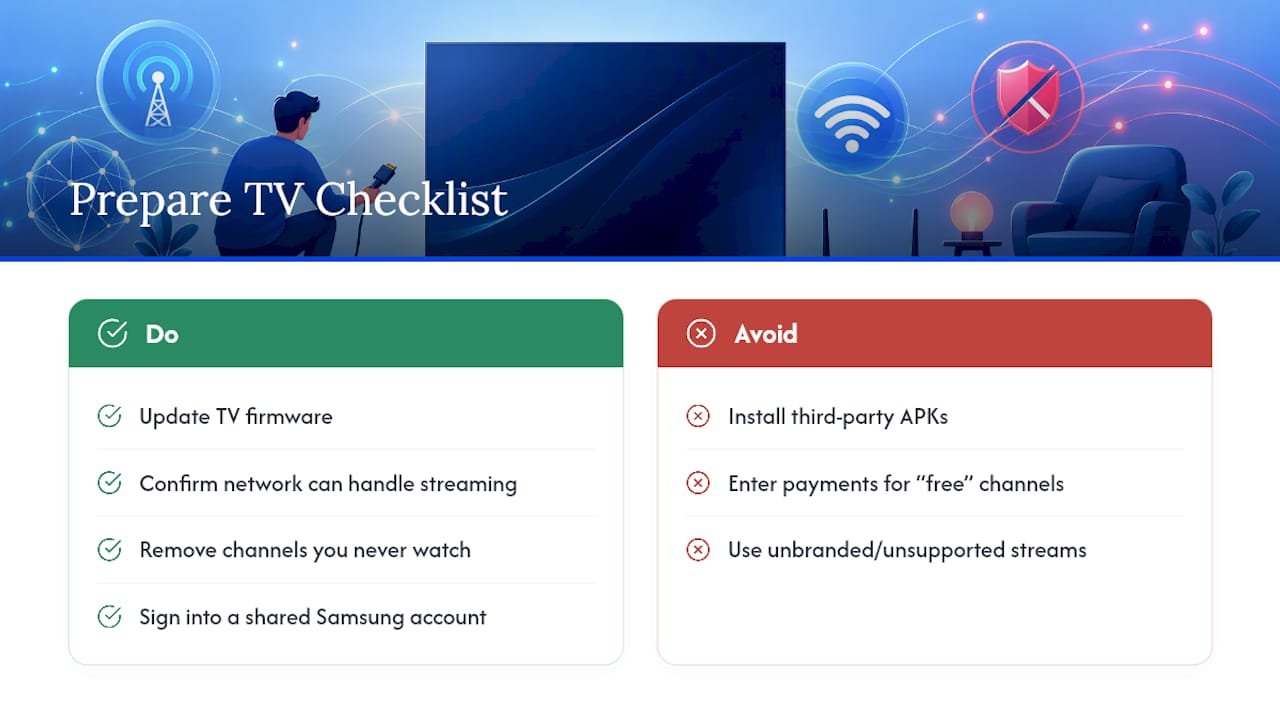
Before you settle in, run through a quick checklist: update firmware, confirm your network can handle streaming, remove channels you never watch, and sign into a Samsung account if multiple people share the TV. Licensed FAST services like TV Plus carry clear branding and appear through official app stores. Anything asking you to install a third-party APK or enter payment details for “free” channels is a signal to walk away.
Pro Tip: In multi-user households, disable Autorun and organize the Home screen so each person’s preferred apps sit up front, cutting down on accidental autoplay confusion.
Why Samsung TV Plus Matters for Cord-Cutters
Built-in FAST services like this one earn their keep by removing the “is this worth paying for” question entirely. It’s already there, already free, and good enough for background news or casual sports highlights. When you want live rights to major games or a deeper channel bundle, that’s when a paid IPTV or streaming service actually makes sense.
— ANASS
Curated IPTV Guides When You Want More Than Free Channels
Samsung TV Plus covers casual viewing well, but it won’t get you live rights to marquee sports or premium channel bundles. That’s the gap Iptv-subscribe fills: independent reviews and comparisons of licensed IPTV providers, built specifically so you avoid the sketchy “free everything” services that ask for your card number and deliver dead streams.
Expert reviews break down pricing, device compatibility, and legal standing across the IPTV market to help you make informed choices about providers. If TV Plus has you hooked on live streaming but leaves you wanting more channels, start with the top-rated live TV streaming services roundup to see which paid options are worth your money and which ones to skip entirely.
Sources
- US Channel Lineup
- TV Plus on your Samsung TV, Smart Monitor, or projector
- How to stop Samsung TV Plus playing automatically