
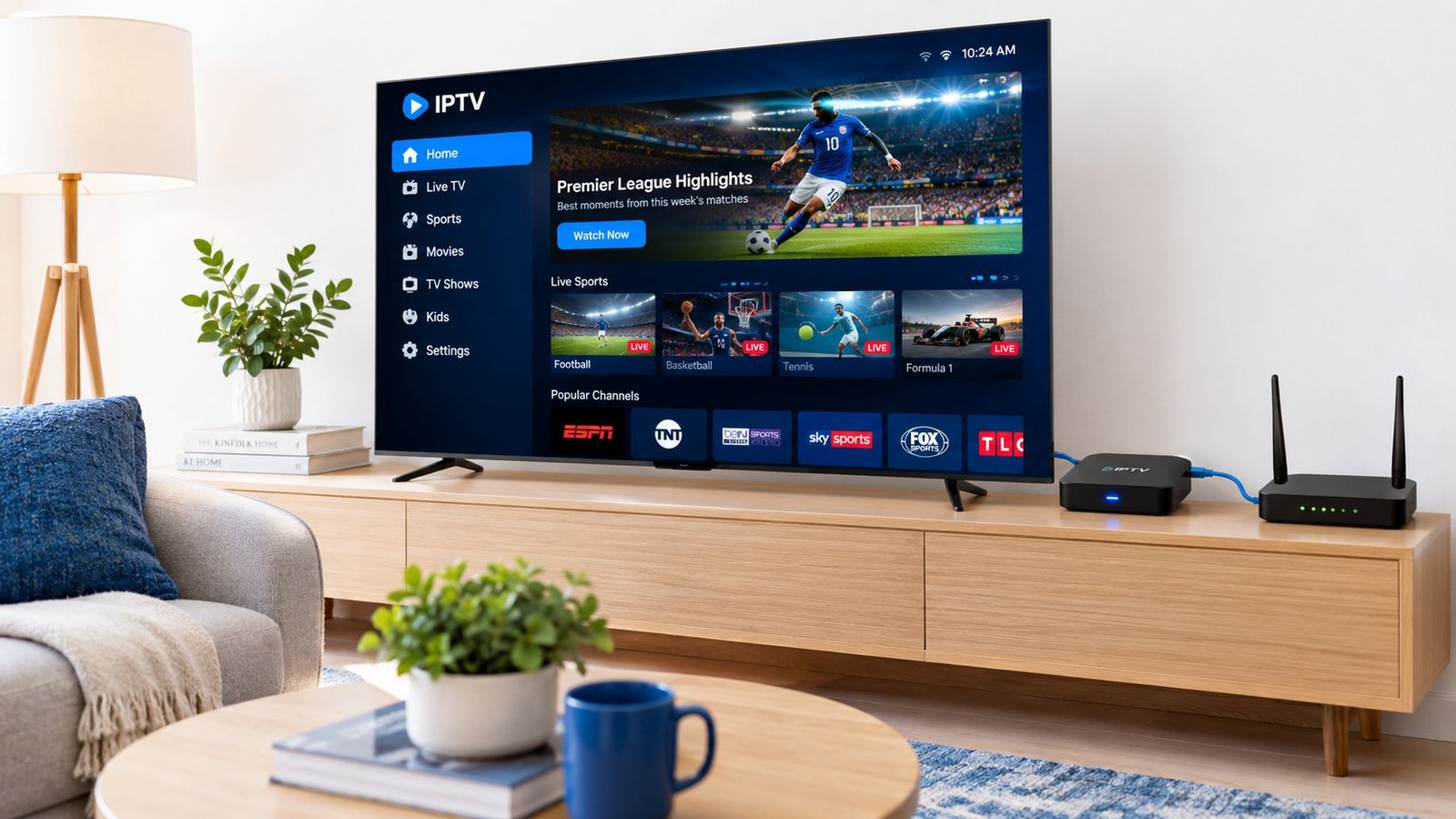
You're probably standing in the living room with a remote in one hand and a buffering wheel on the screen, trying to decide whether your TV setup is the problem, the app is the problem, or the internet bill is the problem. With IPTV on TV, the difference between smooth live viewing and constant frustration usually comes down to planning, not luck. The living-room setup matters, the codec matters, and the security choices matter too.
Table of Contents
- The Shift to IPTV as Primary TV Delivery
- Choosing the Right Hardware for Your Living Room
- Sizing Your Internet Connection for Stable Streams
- Installing and Configuring IPTV Apps on Smart TVs
- Navigating Legal and Security Risks
- Troubleshooting Common Playback Issues
The Shift to IPTV as Primary TV Delivery
A living room with IPTV is no longer a fringe setup. Global IPTV subscriptions were already 15.4 million in March 2008, up 53% in 12 months, and market summaries now place subscriptions above 300 million by 2024, with one forecast projecting 398 million by the end of 2026 Apprupt IPTV statistics. The point is simple. IPTV has become a normal way to deliver TV on a living room screen.
Why the living room changed
Broadband growth is what pushed that change, not just the rise of streaming apps. One industry analysis said IPTV overtook pay satellite subscribers in 2018 and was projected to overtake digital cable in 2024, with 412 million subscribers expected by 2029 World Screen pay-TV subscriber summary. That matters because the TV signal path is now IP-based in many homes, even when the viewer never thinks about the network behind it.
The broader connection base explains why more households can run live TV over IP without relying on a cable box. Worldwide broadband connections reached 9.4 billion subscriptions at the end of 2024, nearly triple the 3.4 billion recorded in 2014. In practice, that means more homes have enough network capacity for live viewing, but only if the local setup is handled with care.
Practical rule: treat IPTV as a permanent TV path. If the household watches live sports, news, or channel-based entertainment, the setup should be planned like a long-term living-room system, not a quick test.
Revenue figures point in the same direction. Market-size data moved from about $72.24 billion in 2020 to $160.44 billion in 2024 and $187.01 billion in 2025, which shows how firmly IPTV on TV has moved into mainstream video distribution. That shift is why hardware choice, app behavior, codec support, and basic security hygiene all matter before the first channel loads.
Choosing the Right Hardware for Your Living Room
A living room IPTV setup starts with one practical question. Do you trust the TV's built-in apps, or do you want a separate box that gives you more control when playback gets picky?
Native smart TV platforms are convenient because they are already on the screen. They also come with limits that show up fast in real homes, app-store restrictions, slower firmware updates, and weaker processing headroom on some sets. External boxes and sticks usually make more sense when the household watches sports, switches between multiple playlists, or wants more freedom in the player app.
Native platform or external box
Samsung Tizen and LG webOS can work well for simple viewing, especially on newer televisions with a clean app and a stable network. The trade-off is flexibility. Native stores often limit the available players, and some IPTV apps are missing entirely or are harder to manage once installed.
An Android TV box changes that balance. It usually gives a wider choice of apps, better sideloading options when needed, and more consistent playback on demanding streams. That matters for live sports, EPG handling, and players that need more tuning than a TV store app allows.
| Feature | Native Smart TV Apps | External Android TV Box |
|---|---|---|
| Setup simplicity | Very easy | Easy, but one extra device |
| App flexibility | Limited by the TV store | Broader app choice |
| Sideloading | Often restricted | Usually possible with care |
| Processing headroom | Depends on TV model | Typically stronger |
| Sports playback stability | Good for light use | Better for demanding use |
| Upgrade path | Tied to the TV | Replaceable without changing the TV |
The rule of thumb is straightforward. If the TV is mainly for casual channel surfing, the native app can be enough. If that screen is the household's main viewing point, external hardware usually gives better control and fewer compromises.
The Android TV path also deserves attention because a lot of “IPTV problems” are really decoder mismatches, weak Wi-Fi, or a thin TV chipset. IPTV Subscribe's Android TV setup guidance is a practical reference for people who want a familiar app-driven setup on a TV screen.
Where native apps fall short
The weak point in a native-only setup is control, not image quality. If an app crashes, the store blocks an update, or the TV firmware gets fussy after an upgrade, the recovery options are limited. External hardware lets you reset the player, switch apps, or test a different decoder without replacing the television.
Security hygiene matters here too. A dedicated box makes it easier to keep IPTV apps isolated from the rest of the home's smart-TV software, and that matters when you are installing apps from outside the TV store or changing player settings often. Keep the device updated, use the official app store when you can, and avoid loading random APKs onto the main family TV. A stable setup is useful, but a clean one is safer.
Short version: if the TV is the house's main live-viewing screen, buy for control, not for convenience alone.
Sizing Your Internet Connection for Stable Streams
The usual IPTV complaint is buffering on a connection that looks fast on paper. Raw plan speed rarely explains it. Stable playback depends on how much throughput still reaches the TV after Wi-Fi loss, other devices on the network, and codec overhead are taken into account.
Codec choice changes the math
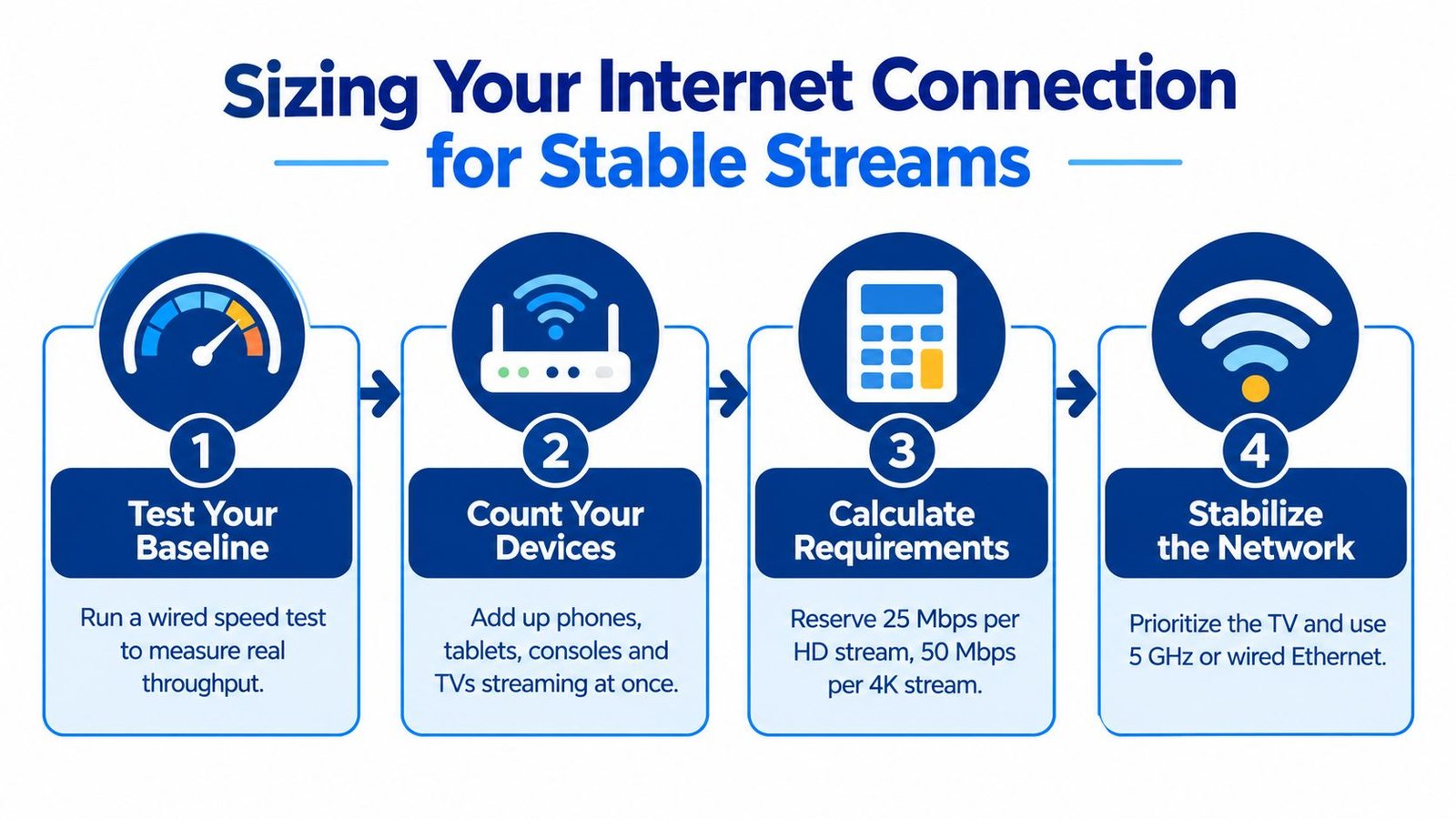
A practical target is about 25 Mbps sustained per 4K stream, with 25 to 35 Mbps per TV for 4K HDR SpeedtestHQ TV guidance. Keep 10 to 20 Mbps of extra headroom for background devices and Wi-Fi variance. If several screens are active, that reserve matters more than the headline speed on the bill.
Codec choice changes the load as much as the speed tier. Android TV setup guidance puts 1080p around 8 to 10 Mbps, 4K H.265 around 12 to 16 Mbps, and 4K H.264 around 20 to 25 Mbps Android TV IPTV setup guidance. In plain terms, H.265 lowers the bandwidth burden compared with H.264 at the same visual target.
A practical sizing method works better than guesswork:
- Test the TV path directly. Measure throughput on the TV itself or on the same wired run the TV uses.
- Count every active device. Phones, tablets, consoles, and smart-home gear all compete for airtime.
- Reserve overhead. Keep 25% to 30% of capacity available for contention and protocol loss.
- Use Ethernet for the main screen. Wired networking is the safer choice for sports and other fast-motion content.
For a planning reference, this IPTV speed guide is useful when you want a simple starting point.
Practical rule: a speed test on your phone tells you little if the TV sits three rooms away on weak Wi-Fi. Test the TV path, not the room.
When Ethernet beats Wi-Fi
Ethernet is the cleaner option when the stream has to stay steady during live sports or other motion-heavy content. Wi-Fi can still work well, but only when the signal is strong, the router is modern, and the network is not crowded with other devices. The closer the TV is to the router, the less painful Wi-Fi becomes, yet a wired link still removes a lot of guesswork.
Installing and Configuring IPTV Apps on Smart TVs
A bad IPTV setup usually starts with one of three mistakes: the app came from the wrong place, the login data was typed wrong, or the TV cannot handle the stream settings cleanly. On a living-room screen, app choice matters, but so do decoder mode, playlist structure, and whether the TV's native app support is good enough for daily use.
Start with the store, then verify the setup
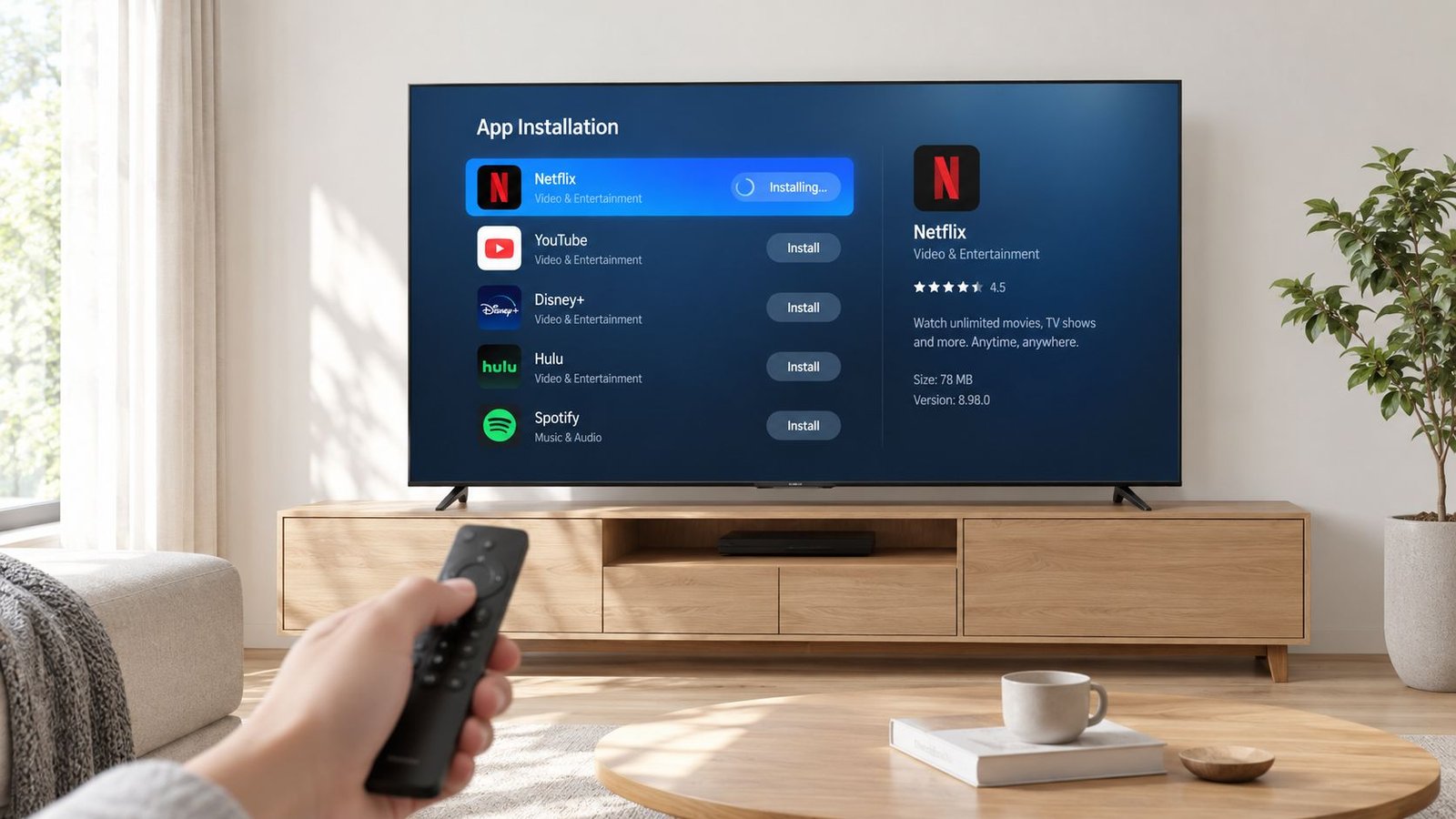
On Android TV, the Play Store is the cleanest starting point when the app is available there. If you need a sideloaded APK, use a vetted source and treat the install file as something to verify, not something to trust because a forum thread said it worked. That matters because the TV may be fine while the app settings are the actual problem.
For a straightforward Android TV workflow, see this Android TV IPTV setup guide. It is more useful than guessing through menus after the screen is already filled with blank categories and failed logins.
Samsung owners often run into a different limit. Native app availability can be narrower, so the first question is whether the service or player is supported properly on that platform before anyone commits to the setup. If the TV cannot run the right app without friction, an external device is usually the cleaner choice.
The first checks that prevent later headaches
The first-run checklist is simple, and skipping it wastes time.
- Confirm the server details. A mistyped server URL or expired playlist leaves the app with empty menus.
- Match the decoder to the stream. Hardware decoding often improves stability, but the wrong mode can cause audio sync issues.
- Organize playlists early. A tidy folder or favorites list saves time once channel counts grow.
- Test one channel first. Open a single stream before you blame the TV for a setup that has not been verified.
The practical mistake I see most often is blaming the television when the fault sits in the configuration. The app can be fine, the service can be fine, and playback still fails because the profile, playlist, or decoder mode is wrong.
A practical Android TV approach
On Android TV, stable playback should come before interface polish. If the app offers both software and hardware decoding, test both and keep the one that avoids frame drops or audio delay. If the TV stutters in one mode, switch before you spend time chasing a network issue that is really a decoder mismatch.
Service credentials matter too. Some providers and players support automatic loading through Xtream Codes-style logins, which is convenient only when the TV app handles them properly. IPTV Subscribe's public setup materials cover that kind of TV workflow in a practical way, and that helps when the device is already running Android TV or a similar smart-TV environment.
Navigating Legal and Security Risks
A lot of setup guides act like the only question is whether the app opens. That is too shallow for a living-room device on a home network. Unknown APKs, questionable app stores, and vague service terms can turn a TV into a weak point instead of a screen.
What safe installation actually looks like
The biggest mistake is installing an app from an untrusted APK source because a forum post says it works. Security guidance from 2025 keeps pointing to the same problems, avoid unknown APKs, check domain age and reviews, update smart-TV firmware, and keep risky services off your primary devices or networks Ultratv Pro security review. Those are not edge cases. They are the baseline.
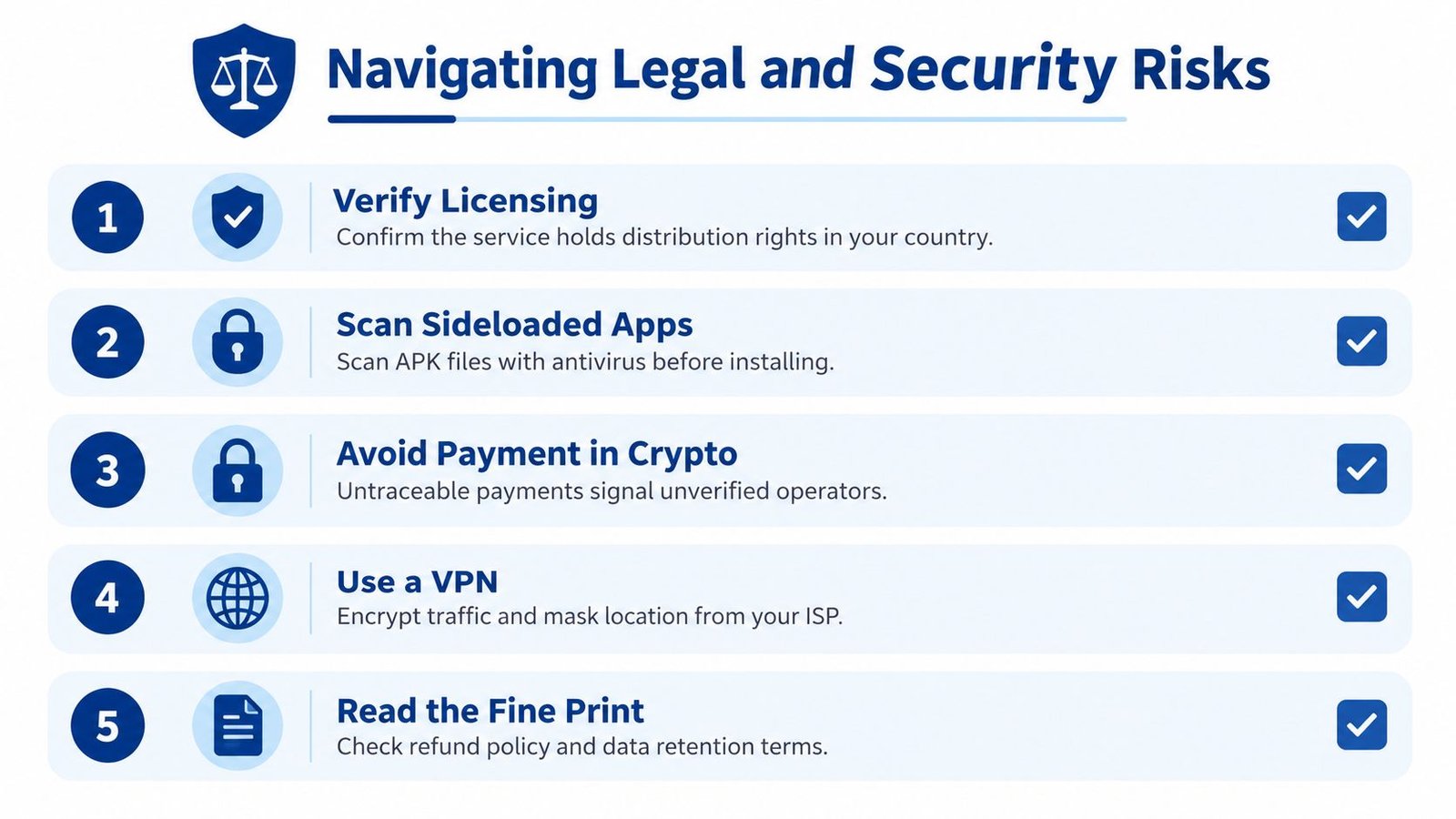
A safe smart-TV workflow is quieter than many expect:
- Verify licensing. Confirm the service has distribution rights in your country.
- Scan sideloaded apps. Check APK files before installing them.
- Avoid strange payment paths. Untraceable payments are a warning sign.
- Use a separate network segment when needed. Keep risky services away from your main devices.
- Read the service terms carefully. Refund policy and data handling matter.
There is also a legal line that gets blurred online. IPTV technology itself is legal, but a specific service is only legal if it has the rights to distribute the content in your region. If a provider will not clearly explain rights, ownership, or billing terms, that is a real warning sign. For a cleaner path, see this guide to legit IPTV services and legal options in 2026 for verified providers in your region.
Device hygiene is part of TV setup
Firmware updates are not optional on a smart TV used for live streaming. They patch bugs, improve compatibility, and close known security holes. The same applies to the router, because a weak home network can expose more than a single app crash.
A good rule is simple, if a service feels hard to verify, do not put it on the main TV or the main network.
That is why legal app-based viewing is usually the cleaner long-term path. It keeps the TV usable, reduces risk, and avoids the churn that comes from unstable third-party sources. The goal is to keep the living room functional.
Troubleshooting Common Playback Issues
A stream that stutters in the living room usually points to one layer, not the whole setup. The TV, the app, the network, and the source feed can all produce the same symptom, so the fastest fix is to isolate which part changed first. Reinstalling everything usually wastes time.
Start with the simplest diagnosis
Audio drift is often a decoder problem. Switch between hardware decoding and software decoding before changing playlists or replacing the app, because each TV and box handles those modes differently. If sync improves in one mode, the device or its decoder path is the weak point.
Buffering is the next common complaint. Wi-Fi congestion, a busy router, or a stream profile that is too demanding for the connection can all trigger it. Ethernet is the cleanest test because it removes most wireless variability and tells you whether the issue is the network or the app path.
A clean troubleshooting order
- Test one channel. If only one stream fails, the problem is likely upstream or tied to that playlist.
- Clear the app cache. Stale guide data and broken app state often disappear after a cache reset.
- Check other devices. Smart speakers, consoles, and tablets can easily consume bandwidth.
- Compare decoder modes. If the picture stutters or audio slips, change the decoder and test again.
- Reboot the router and TV. Temporary congestion and stale sessions cause more trouble than many people expect.
Guide data that refuses to load does not automatically mean the service is down. The app may be holding an old EPG file, or the TV may have kept a bad state after an update failure. A clean restart and cache clear often fix that problem before deeper troubleshooting is needed.
Read the symptom, not the fear
A frozen screen does not always point to the provider. It can mean the TV's processor is overloaded, the Wi-Fi signal dropped, or the stream codec does not match the decoder mode the app is using. Start with the last thing that changed. That usually narrows the fault faster than chasing the most annoying symptom.
Drafted with Outrank app