

YouTube TV’s Base Plan costs $82.99 a month for 100+ channels, unlimited DVR, and up to six household accounts. But since YouTube TV cost got a major overhaul with genre-based plans, subscribers who don’t need everything can pay as little as $54.99 a month. Your actual bill depends on which plan you pick, whether you qualify for new-subscriber pricing, and how many add-ons you stack on top.
TL;DR:
- Subscribing directly through Google rather than a partner billing provider ensures immediate access to genre-based plans.
- Combining add-ons like Sports Plus or Entertainment Plus with lower-tier plans can cost nearly as much as the full Base Plan, reducing savings.
- New subscriber discounts typically last around three months, after which rates revert automatically to standard pricing, making long-term budgeting essential.
- The Sports Plan covers major live sports networks, appealing to viewers focused on Sunday games and March Madness, but extras like ESPN Unlimited may require additional subscriptions.
- A household that genuinely uses all features and channels will find the $82.99 Base Plan offers the broadest value, while single-genre users can save by selecting their niche tier.
Table of Contents
- How Much Does YouTube TV Cost Right Now?
- What Do You Actually Get With Each Plan?
- Do Add-Ons Erase Your Savings?
- How Do You Get the Lowest Introductory Price?
- How Do You Switch, Pause, or Cancel a Plan?
- How Do You Pick the Cheapest Plan That Still Fits?
- Is YouTube TV Worth It in 2026?
- Looking for a Lower Bill Without Losing Channels?
- Sources
How Much Does YouTube TV Cost Right Now?
The pricing structure changed in a real way when YouTube TV split its lineup into genre-focused tiers. Instead of one all-or-nothing package, you now choose based on what you actually watch, and the YouTube Blog announcement confirms this was designed to give cord-cutters more control over what they pay each month.
Here’s the full breakdown of YouTube TV pricing 2026, including both the ongoing rate current subscribers pay and the discounted rate offered to new sign-ups:
- Base Plan: $82.99/month. This is the plan most people already know. It bundles 100+ channels, unlimited cloud DVR storage, and support for up to six accounts under one household. If you want everything (sports, news, and entertainment) without juggling separate tiers, this is still the simplest option.
- Sports Plan: $64.99/month for existing subscribers, with a new-subscriber introductory rate of $54.99/month for the first 12 months when the promotion is active, according to Variety’s coverage of the launch.
- Sports + News Plan: $71.99/month standard, $56.99/month for new subscribers during the first three months.
- Entertainment Plan: $54.99/month standard, $44.99/month for new subscribers during the first three months.
- News + Entertainment + Family Plan: $69.99/month standard, $59.99/month for new subscribers during the first three months.
- Spanish Plan: priced separately from the genre lineup and aimed at subscribers who want a Spanish-language channel package rather than the full English-language base tier.
There’s a practical wrinkle worth knowing before you shop around: not every subscriber sees these plans right away. Google’s support page for YouTube TV notes that plan availability can lag when you’re billed through a partner like a mobile carrier or cable provider rather than directly through Google. If you want immediate access to the new tiers, subscribing straight through tv.youtube.com and paying Google directly is the fastest route. Canceling a partner-billed subscription and re-signing up directly is often quicker than waiting for that partner’s systems to catch up, based on the same support guidance.
Promotional prices typically apply for a limited period (usually three months, up to twelve months for some plans), then revert to the standard rate. It’s best to budget based on the standard rate rather than the introductory price for long-term planning.

What Do You Actually Get With Each Plan?
The dollar amount only tells half the story. What matters more is whether the channels inside a cheaper plan cover what you watch on a normal week.
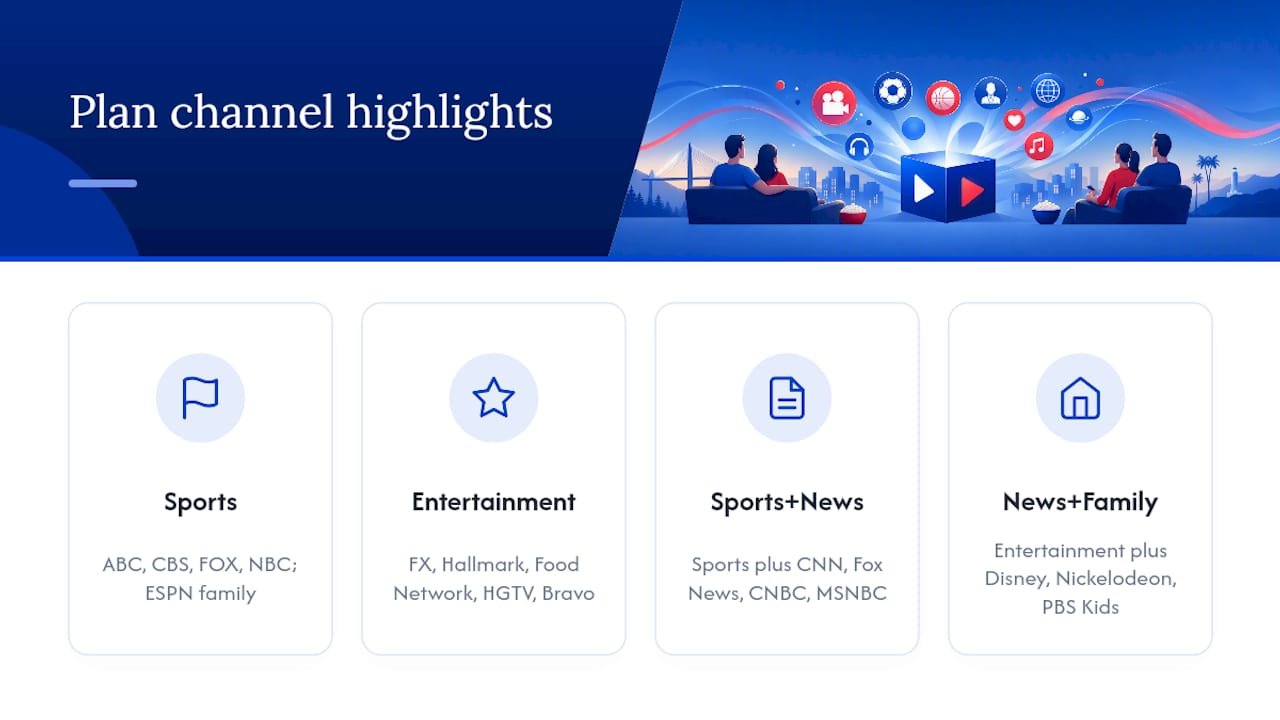
The Sports Plan carries the broadcast networks most live sports fans rely on: ABC, CBS, FOX, and NBC, alongside the ESPN family of networks, FS1, and NBC Sports Network. TechCrunch’s report on the rollout also flagged ESPN Unlimited as an upcoming addition, which matters if you’re chasing out-of-market games. For most people whose TV habit is Sunday football and March Madness, this tier covers the bases without the extras you’d never open.
The Entertainment Plan excludes sports and hard news channels but includes FX, Hallmark Channel, Food Network, HGTV, and Bravo. This plan suits viewers focused on cooking shows, home renovation content, or scripted dramas, avoiding payment for channels they do not watch.
Sports + News Plan combines sports channels with national news outlets such as CNN, Fox News, CNBC, and MSNBC. It suits households with mixed interests in sports and news without adding extra entertainment channels.
News + Entertainment + Family Plan includes entertainment channels plus children’s programming like Disney Channel, Nickelodeon, and PBS Kids, targeting households with kids wanting lifestyle and news content without dedicated sports channels.
Regardless of which genre plan you choose, a few features carry over across the board:
All plans include unlimited cloud DVR storage, support for up to six accounts per household, standard simultaneous-stream allowances allowing multiple viewers at once, and multiview support for sports programming where applicable.
Do Add-Ons Erase Your Savings?
This is where a lot of budget-conscious switchers get burned. Add-ons look cheap individually, but stack two or three and you can land right back at Base Plan pricing without realizing it.
Here are the most common add-ons and what they cost, based on pricing documented by CableTV’s breakdown of Sports Plus and RedZone:
Common add-ons include Sports Plus at about $11 per month, which unlocks additional sports networks beyond the Sports Plan. NFL RedZone is generally included within Sports Plus during football season. The Entertainment Plus bundle costs around $30 per month and adds premium entertainment channels beyond the standalone Entertainment Plan.
Before adding add-ons, calculate total costs. For example, the Sports Plan plus Sports Plus add-on approaches the Base Plan price, making the Base Plan potentially a better value if multiple add-ons are desired.
Analysts covering the genre-plan cost traps point to this same pattern with the Entertainment tier: stack the Entertainment Plus bundle on top of the standalone Entertainment Plan, and you’re closing in on Base Plan money while still missing sports and full news coverage. Before switching plans to “save money,” multiply your target plan’s monthly rate by 12, add any add-ons you’ll realistically want during the year (sports add-ons during football season, for instance), and compare that total against what a full year of the Base Plan actually costs.
How Do You Get the Lowest Introductory Price?
New-subscriber discounts are real, but they come with rules that trip up a surprising number of people.
Introductory pricing for plans typically lasts for a limited time—commonly three months for most genre plans and up to a year for some promotions—after which the billing reverts to the standard rate automatically.
Discounts from ISP bundles, such as those from Verizon or Frontier, may be available in addition to promotional pricing. Eligibility is based on Google account and payment history rather than solely on email address.
Pro Tip: Trying to “reset” your eligibility by creating a fresh Gmail account almost never works. Reporting on promotional eligibility enforcement confirms Google ties new-subscriber offers to payment methods and account signals, not just the account itself, so a new email alone won’t unlock a promo you’ve already used.
If you’ve ever had a YouTube TV trial or paid subscription tied to your Google account or the credit card you plan to use, don’t count on qualifying as a “new” subscriber. Check the DealNews analysis of YouTube TV promotional offers for current bundle terms before assuming you’re eligible.
How Do You Switch, Pause, or Cancel a Plan?
Changing plans doesn’t require canceling and restarting from scratch, and the billing adjustments happen faster than most people expect.
- Go to Settings, then Membership, then select Change plan. Charges and credits for the switch apply immediately, according to Google’s own support documentation.
- If you’re stepping away temporarily rather than switching tiers, use Pause membership instead of canceling outright. YouTube TV lets you pause for up to 24 weeks per year, and your DVR recordings and settings stay intact the whole time, per Pocket-lint’s guide to the pause feature. This is the better move for a month-long trip or an off-season sports break, since you’re not paying for a service you’re not using but you’re also not starting over when you come back.
- To cancel entirely, the option sits in the same Membership settings menu. Watch for a retention offer during the cancellation flow. YouTube TV sometimes presents a one-off discount to keep you subscribed, and it costs nothing to see what’s offered before you confirm.
How Do You Pick the Cheapest Plan That Still Fits?
Some sites specialize in helping cord-cutters cut through pricing confusion, and this pricing shakeup is exactly the kind of decision where a little homework saves real money.
- Track your actual viewing for two to three weeks. Write down every channel you land on, then match that list against the narrowest genre plan that covers it.
- If sports are seasonal for your household, add the Sports Plus add-on only during the season and remove it once it ends, using a calendar reminder so it doesn’t quietly renew.
- Combine seasonal add-on removal with the pause feature if you’re also traveling during that off-season stretch. It avoids paying for a subscription you’re not using at all.
Pro Tip: Before chasing any promo, confirm three things: that your billing method (direct vs. partner) actually gives you access to the plan you want, that you genuinely qualify as a new subscriber, and that your 12-month total (including add-ons) beats what you’re paying now.
There’s no dedicated senior discount built into YouTube TV’s pricing, based on reporting on senior-focused streaming deals, so the Entertainment Plan tends to function as the de facto budget option for viewers who don’t need sports or rolling news coverage. And whatever plan you land on, stick to licensed, legal services. If you’re weighing options beyond YouTube TV, Iptv-subscribe’s comparison of live TV streaming services covers vetted, legal alternatives without the risk that comes with unauthorized IPTV sources.
Is YouTube TV Worth It in 2026?
YouTube TV’s Base Plan still makes sense for households that genuinely use the range: sports on Sunday, news in the evening, cartoons for the kids, and reruns for everyone else. Paying $82.99 for that breadth beats stacking three genre plans separately.
But if you’re a single-genre household, the math has shifted in your favor for the first time in years. A sports-only viewer who never touches Sports Plus can save nearly $20 a month by picking the Sports Plan instead of defaulting to Base. The mistake to avoid is treating the introductory price as the real price. Run your 12-month numbers first.
Pricing pages rarely tell the whole story, and that’s true whether you’re comparing YouTube TV’s tiers or evaluating a licensed IPTV provider. Whatever you choose, choose it through legal channels. Continue your research on what makes an IPTV provider reputable before committing to anything outside the mainstream streaming names.
— ANASS
Looking for a Lower Bill Without Losing Channels?
If YouTube TV’s genre plans still leave you paying for channels you don’t watch, or you’re priced out entirely once promos expire, a licensed IPTV package can fill that gap without the guesswork. Some review sites cover vetted, legal live-TV alternatives with transparent monthly pricing, so you’re comparing real 12-month totals instead of teaser rates that jump after three months.

Iptv-subscribe’s guide to top-rated IPTV subscriptions walks through providers by price, channel lineup, and device support, the same way this article broke down YouTube TV’s tiers. You’ll also find a breakdown of what legal IPTV actually costs once add-ons and device fees are factored in, which matters given how quickly YouTube TV add-ons can close the gap with pricier plans. Before you commit to any streaming service this year, whether it’s YouTube TV or an IPTV alternative, add up a full year of charges, not just the first invoice. Start by comparing options on the top-rated IPTV guide and see what fits your actual viewing habits.
Sources
Pricing on streaming services changes without much warning, so verify current rates before you commit to a plan. Start with YouTube’s own official pricing announcement and the YouTube TV support pages for billing specifics. For independent reporting and channel breakdowns, Variety’s coverage, TechCrunch’s rollout report, and CableTV’s add-on pricing guide all corroborate the figures cited here.
- Choose the YouTube TV plan that fits your interests – YouTube Blog
- YouTube TV Plans Pricing & Channels for Sports, News Tiers and More – Variety
- YouTube TV introduces cheaper bundles, including a $65/month sports package | TechCrunch
- YouTube TV help: Learn about YouTube TV plans – Google Support